Edit a hypnosis recording
The one rule that separates a hypnosis recording that works from one that doesn't is that you leave the pauses alone. Every editing habit picked up from podcasts and video says close the gaps and tighten it up; here the gaps are the work, because the silence after a suggestion is where the suggestion settles, and a tightened track stops working while still sounding completely fine. Audacity will make every edit described on this page and it costs nothing, so if it's already on your machine there's no reason to move. Where it runs out is that it's a desktop install you can't put on a work or school laptop, and the four things a hypnosis track actually needs are scattered through menus written for people mixing music. Hilite trims, cleans, levels and exports in a browser tab, on a file that might run forty minutes.
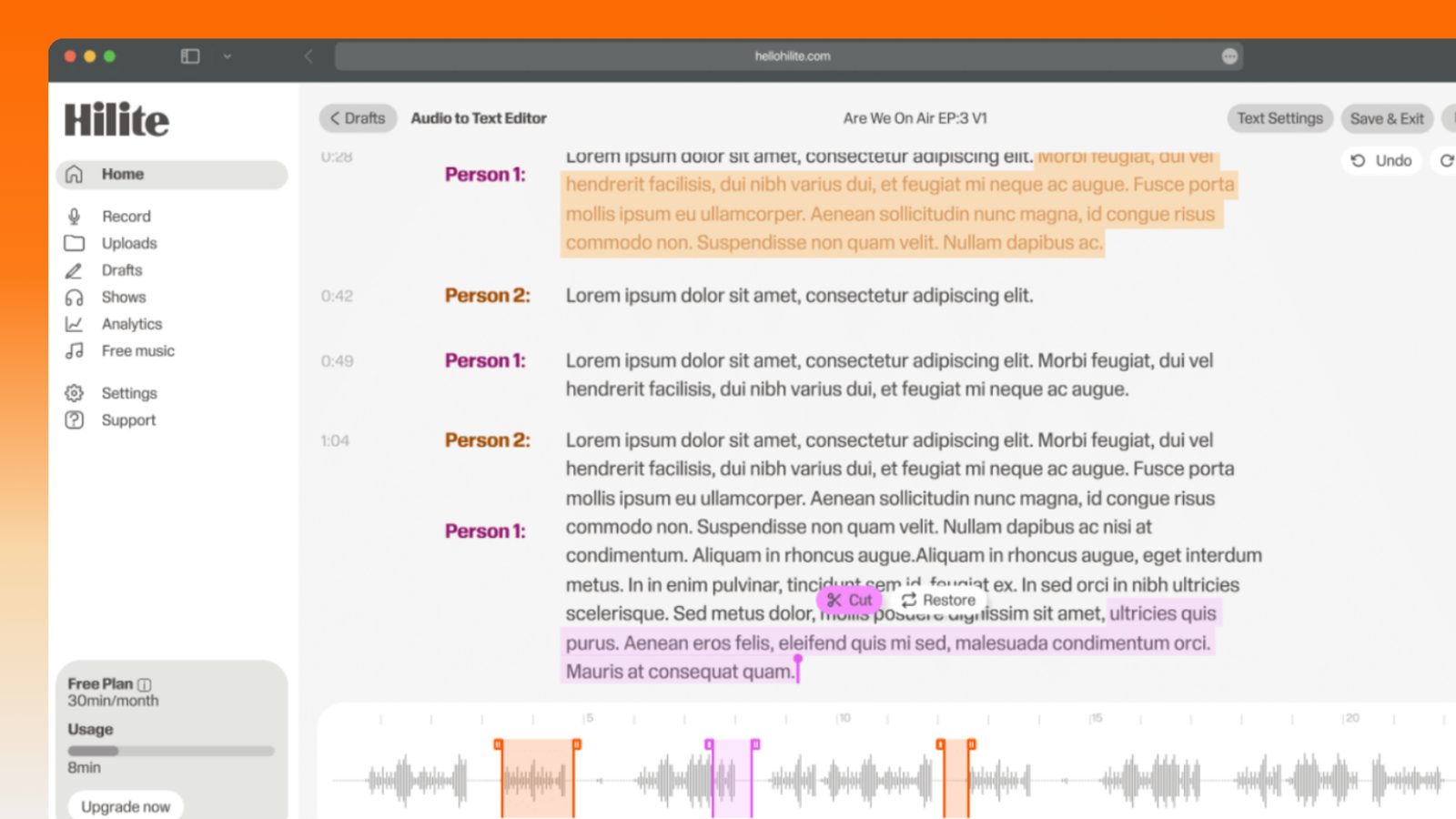
Edit a hypnosis track in four steps
- 1
Top and tail, and nothing else
Cut the room tone before your first word and after your last one. Everything between those two points stays exactly as long as you recorded it, including the silences that look like dead space on the waveform.
- 2
Take the noise floor off gently
Enough to lose the hum of the room, not enough to make the quiet lines sound hollow. On a track full of long silences, over-processing is very audible, because there's nothing to hide behind.
- 3
Even the loudness across the whole file
Level it so the softest suggestion and the count-up sit at the same comfortable volume. Nobody should have to reach for the phone halfway through, and nothing should arrive louder than what came before it.
- 4
Music under the body, out before the return
If you're using a bed, bring it in low under the induction and fade it out before the count-up begins. The return should be your voice alone and unmistakably clear.
Merge audio inside the Hilite editor
Your uploaded files open directly in a focused editor view. Arrange your clips, preview the timeline, adjust transitions, and export when the track sounds perfectly right.
- Drag to reorder clips
- Trim starts, ends, and gaps
- Preview the full track before export
Input formats
Output formats
Built for every kind of audio
Whatever you are making, this tool helps you get to a cleaner, more useful result, then hand off to Hilite to enhance and polish.
- The pauses are the contentAn editor's instinct is to close a five-second gap. On a hypnosis track that gap is doing the work, and a tighter version of the same words simply stops having an effect.
- Never touch the emergenceHowever long the file has run, the count-up stays whole — not trimmed for time, not faded under music. It's the only thing bringing the listener back to the room.
- Levels for someone nearly asleepA quiet suggestion followed by a louder line is a jolt for a listener who has gone deep. Even the whole track out so nothing arrives suddenly.
- Quiet on purposeDon't master it to podcast loudness. This gets played in headphones in a dark bedroom, so the finished file should sit noticeably quieter than the last thing they listened to.
Made for podcasters and their teams
Trim the dead air off the top and tail, and every recording is ready to edit, enhance, and publish.




FAQ
Common questions
If you do not see your question here, the support team replies within one business day.
- No. This is the one thing to get right and it runs directly against normal editing instinct. In a podcast or a video, a five-second silence is dead air you remove; in hypnosis it's the space where the suggestion lands and the listener follows what you've just said. Tighten those gaps and you get a track that sounds well edited and doesn't work any more, which is a hard failure to spot because nothing about it sounds wrong. Trim the silence before your first word and after your last one, and leave everything in between at exactly the length you recorded it.
- No — and this is the fault that shows up most often in free hypnosis audio. The count-up is what brings the listener back to the room, so it can never be trimmed for length, buried under a music bed, or faded out while it's still running. If your track has music, fade the bed out before the return starts, so the last few minutes are your voice on its own and clearly audible. Let the recording sit for a second or two after your final line, then stop it cleanly. The listener should be in no doubt that the session has finished.
- Put it far lower than you think, and take it away before the end. A bed should sit under the voice as a texture you'd notice if it vanished rather than something you're listening to — if you can follow the melody, it's too loud and it's competing with the words. Fade it in gently under the induction rather than starting it at full level, keep it steady through the body of the track, then fade it out before the count-up begins. Make sure the music is licensed for what you're doing with it, especially if you're selling the track; free-to-listen on a streaming site is not the same as cleared for commercial use.
- Quieter than a podcast, and even from end to end. These files get played in headphones in a dark room by someone about to fall asleep, so mastering to the loudness a music or podcast platform expects makes the track feel aggressive from the first line. Aim for a comfortable, consistent level with plenty of headroom rather than the loudest you can get without clipping. Evenness matters more than any target number: the fault listeners actually notice is one line arriving louder than the last after they've gone deep.
- Level the file rather than pulling individual sections down by hand. Volume levelling looks at the whole track and brings the quiet and loud stretches towards each other, which fixes the slow drift that happens when you settle into a script or start projecting as you go on. Do it gently — heavy compression on a spoken hypnosis track makes your breaths and mouth noises jump forward, which is unpleasant close-miked in headphones. Then listen right through once at low volume to check nothing arrives suddenly.
- Cut it inside a pause, not at the join between two words. There are long silences either side of most lines on a hypnosis recording, so put your edit points in the middle of that silence and the join disappears completely. What you must not do is remove the silence itself while you're there — cut the fluffed sentence and leave the gap at its original length. If the repair leaves a small step in the background hum, a very short cross-fade across the join covers it.
- Yes, lightly. Steady hum from a fridge, a boiler or a laptop fan is genuinely worth removing, because it becomes the most noticeable thing on the track when someone plays it in headphones at night. But use the smallest amount that clears it. Hypnosis tracks are mostly quiet speech and long silences, and there's nothing for heavy processing to hide behind, so an aggressive setting leaves your voice sounding thin and the silences sounding artificially blank. Clean the room out, then stop.
- An mp3 for anything a client will download or stream. A twenty-five minute wav is a few hundred megabytes and awkward to email or host, and nobody listening on a phone at bedtime will hear the difference. Export mp3 at a decent bitrate and name the file with the title and length so it's obvious in a downloads folder. Keep the original recording and the unexported edit, though — if you later want to sell the track through a platform that asks for wav, or re-cut it, you'll want the full-quality version rather than a re-export of the mp3.
Edit it without editing the life out of it
Trim the ends, leave every pause, keep the count-up whole, and export something quiet enough to fall asleep to.