Free voice memo to MP3 converter
Turn an iPhone or iPad Voice Memo into an MP3 for easier sharing, uploading, and publishing. Upload the M4A memo, make any quick edits, and export an MP3 in your browser.
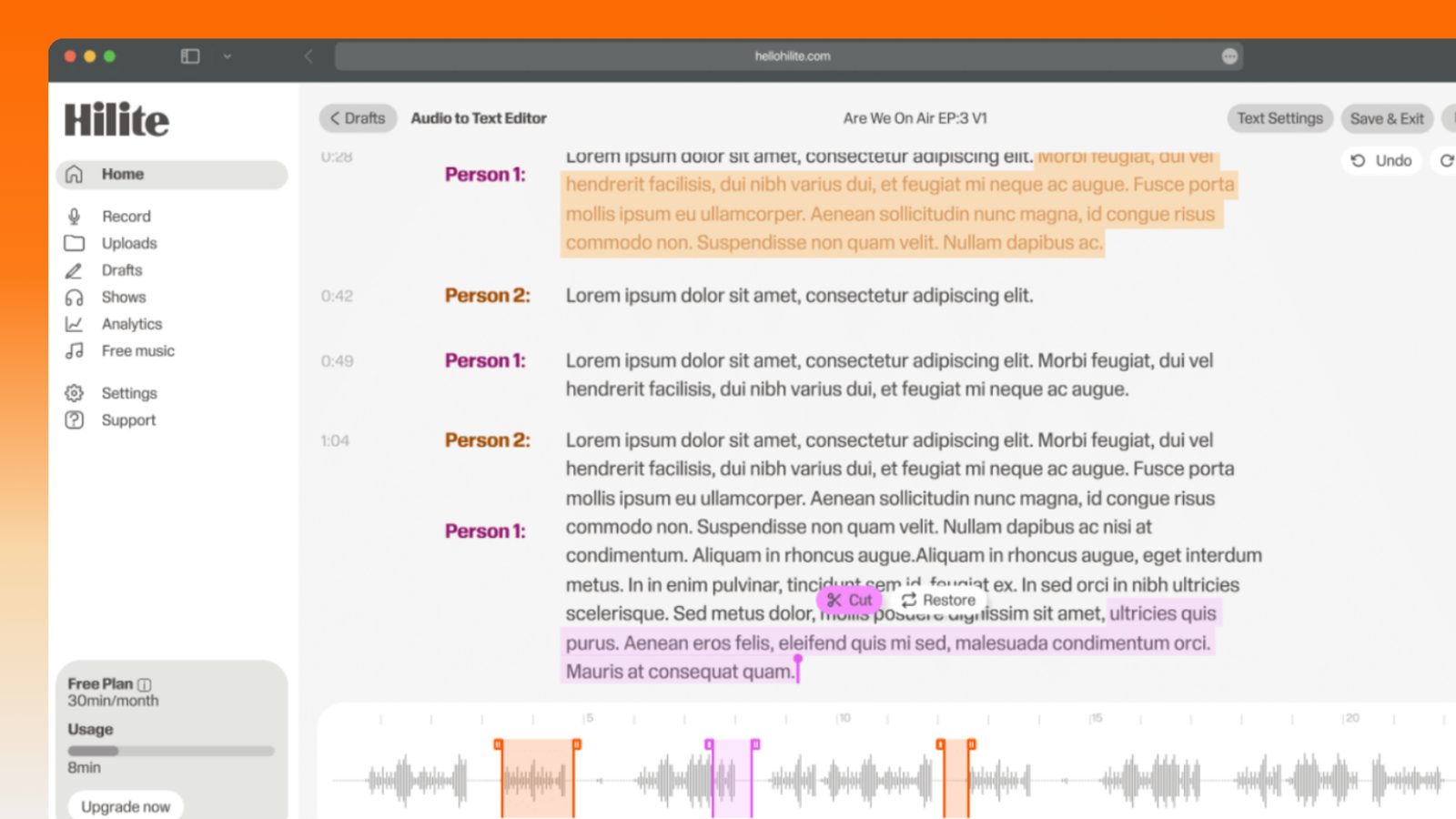
Upload the memo, remove anything you do not need, and export the finished audio.
Convert a Voice Memo to MP3 in four steps
- 1
Share the memo to Files
In Voice Memos, open the recording, tap Share, and save the M4A file to Files or your computer.
- 2
Upload the M4A
Choose the Voice Memo file in Hilite.
- 3
Trim or clean it up
Remove anything you do not want in the exported copy.
- 4
Export the MP3
Download the converted version and keep the original memo as a backup.
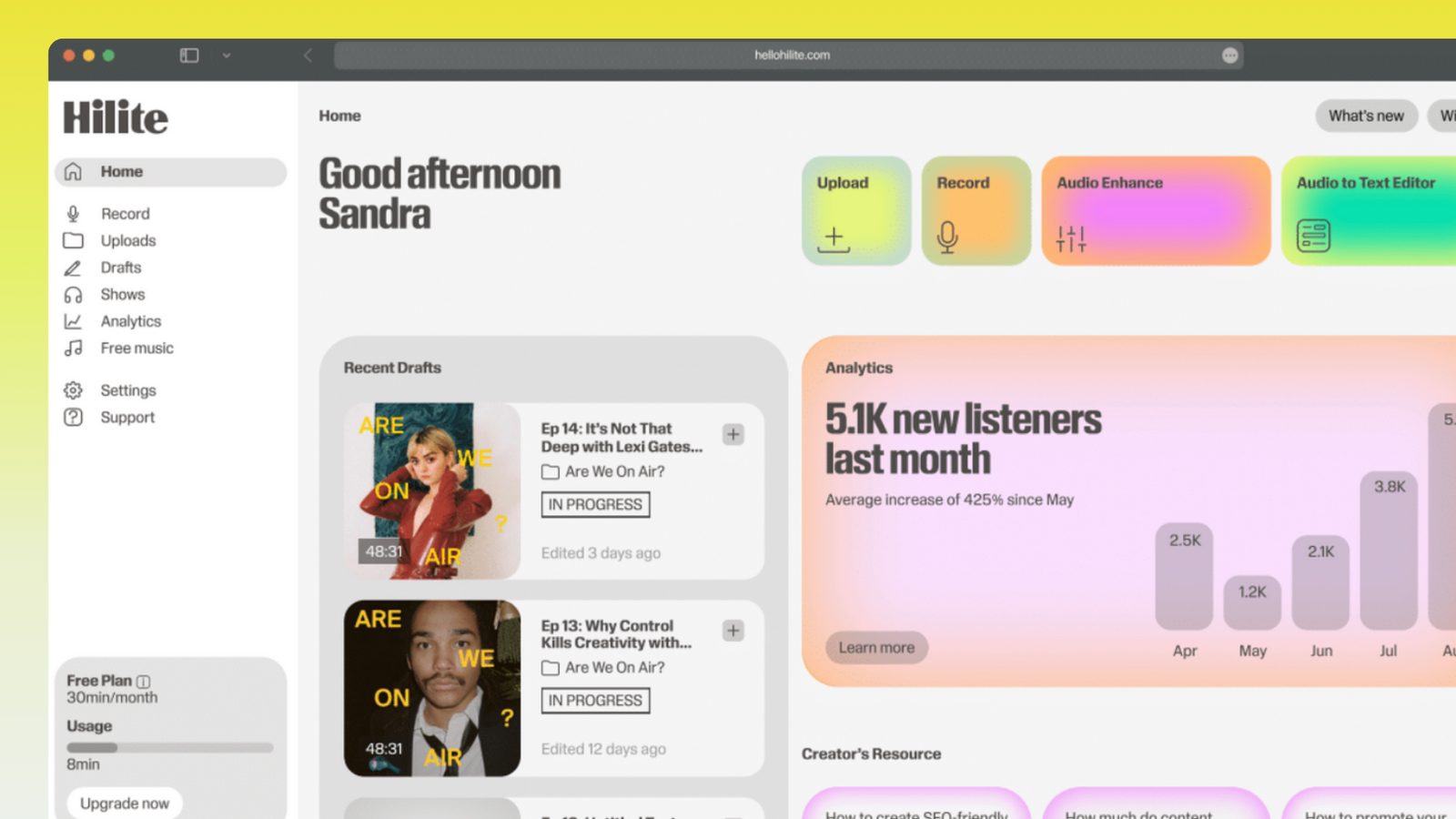
Merge audio inside the Hilite editor
Your uploaded files open directly in a focused editor view. Arrange your clips, preview the timeline, adjust transitions, and export when the track sounds perfectly right.
- Drag to reorder clips
- Trim starts, ends, and gaps
- Preview the full track before export
Input formats
Output formats
Built for every kind of audio
Whatever you are making, this tool helps you get to a cleaner, more useful result, then hand off to Hilite to enhance and polish.
- Share it more easilyMP3 is accepted by most messaging, publishing, and learning platforms.
- Trim before exportRemove the false start or dead air instead of converting the entire memo unchanged.
- Keep the originalThe source M4A stays intact while you create a separate MP3 copy.
- Work in the browserConvert and edit without installing a desktop audio application.
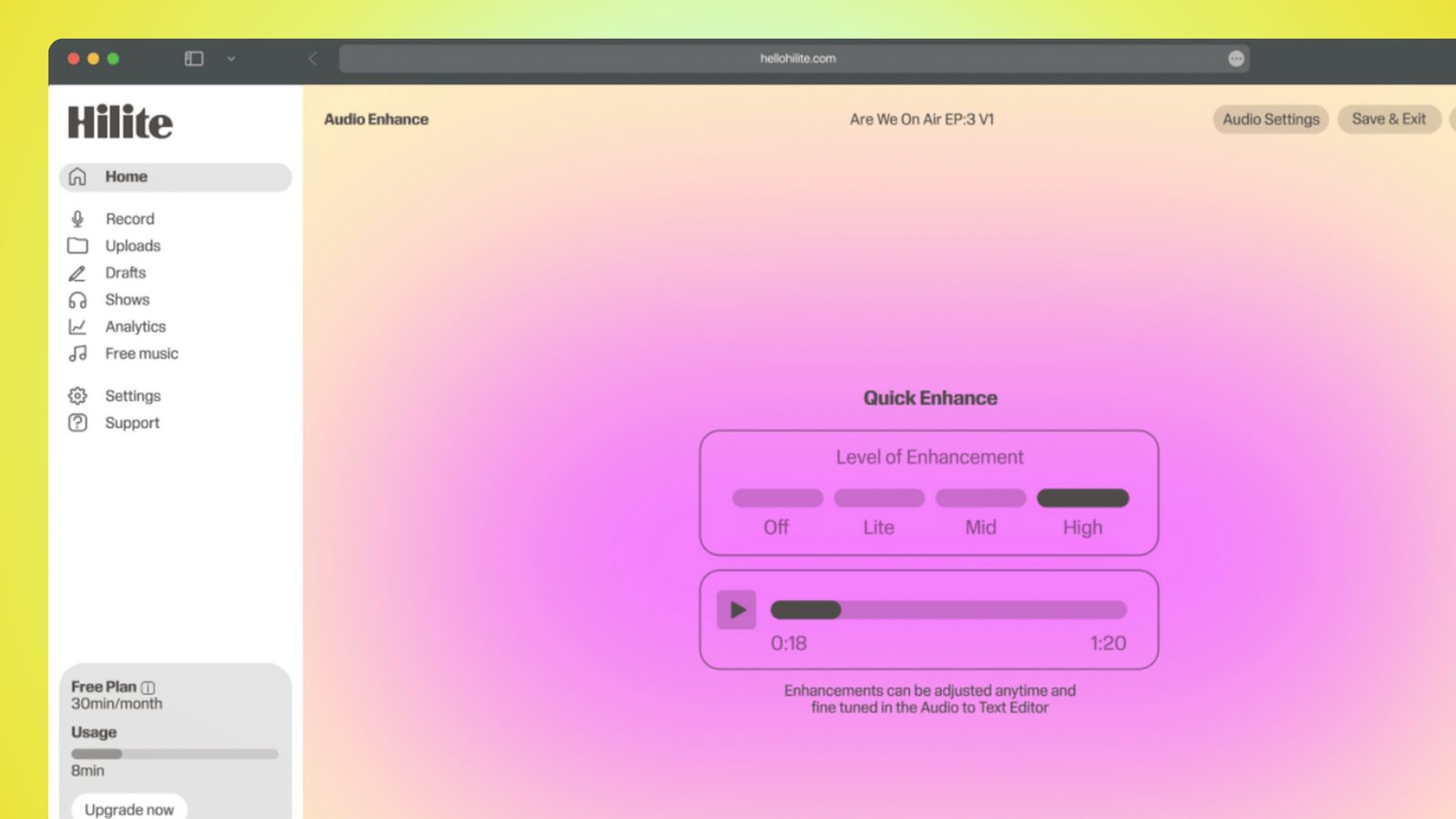
Made for podcasters and their teams
Trim the dead air off the top and tail, and every recording is ready to edit, enhance, and publish.





FAQ
Common questions
If you do not see your question here, the support team replies within one business day.
- Voice Memos are commonly shared as M4A audio files.
- Share the memo to Files, upload the M4A to Hilite, then export the edited recording as MP3.
- No. Keep the original M4A in Voice Memos or Files and download the MP3 as a separate copy.
- Yes. Remove unwanted audio before exporting the MP3.
- Yes. Voice Memos on iPad uses the same share-and-upload workflow.
- No. Hilite works in the browser.
Turn the memo into a file you can use
Upload, trim, and export an MP3 in the browser.