Free M4A to text converter
M4A is what the iPhone Voice Memos app saves, which makes it the format most interviews, lectures, and quick notes actually arrive in. Upload the file straight from your phone or Mac and Hilite turns it into a transcript you can read, correct, and export.
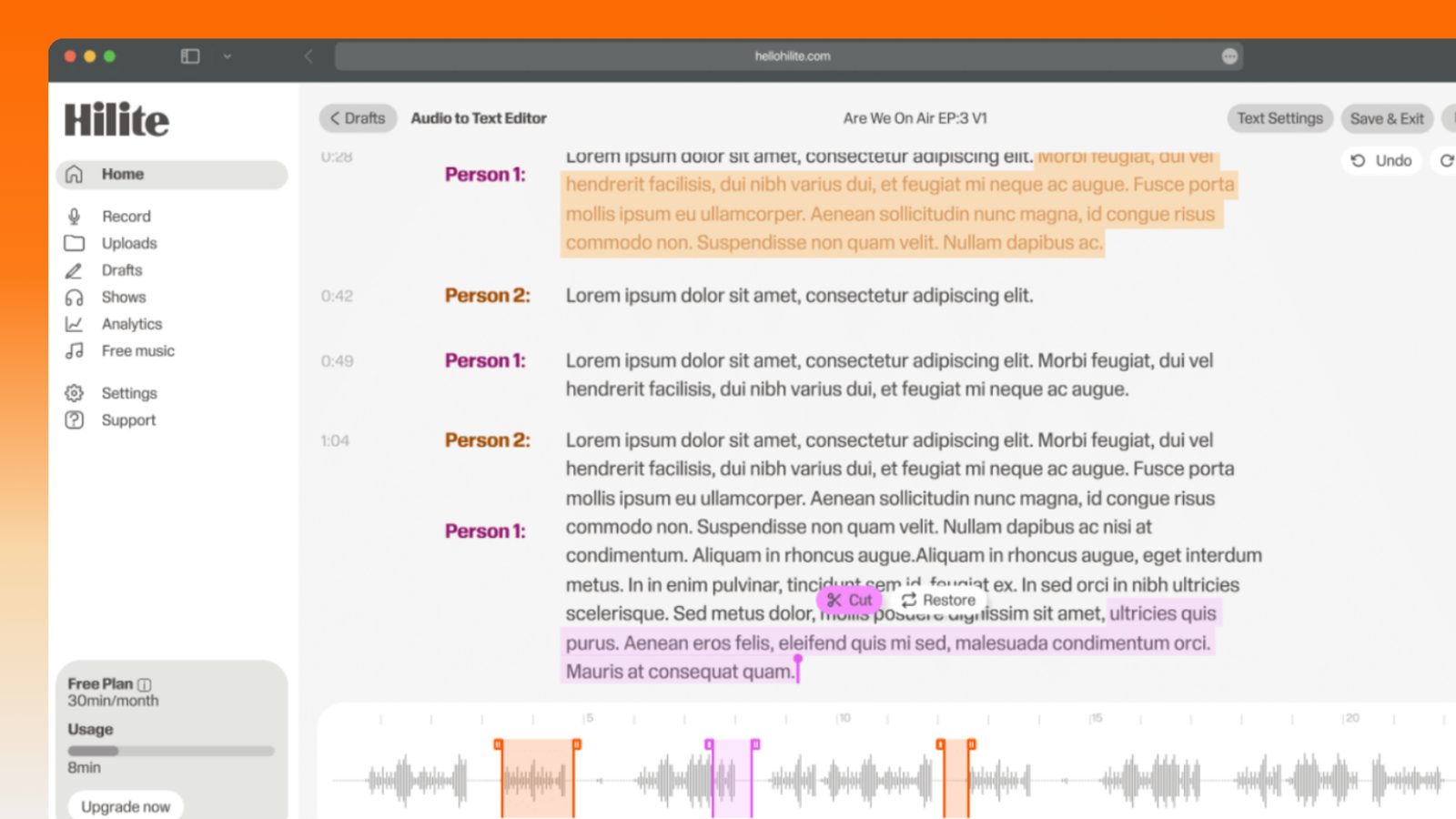
Upload a file and download the transcript.
How to convert an M4A to text
- 1
Get the file off your phone
In Voice Memos, tap the recording, tap the share button, then save it to Files or AirDrop it to your computer. The file will end in .m4a.
- 2
Upload the M4A
Drop it in exactly as it is. There is no need to convert it to MP3 on the way.
- 3
Pick the language and transcribe
Choose the spoken language, or let Hilite detect it.
- 4
Correct and export
Click any line to hear it back. Fix the names and the jargon, then download as text, Word, or subtitles.
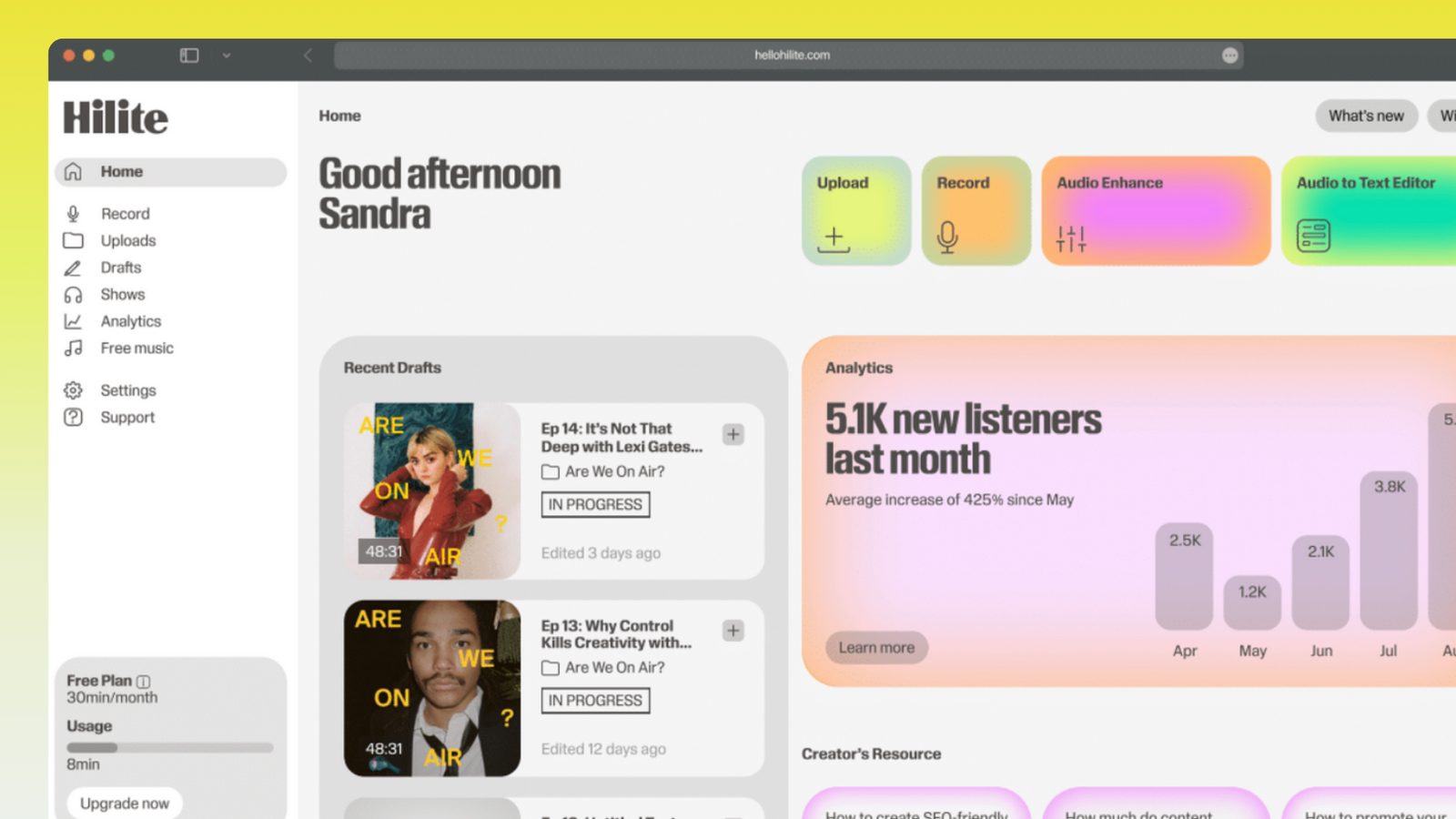
Keep working inside the Hilite editor
Your uploaded files open directly in a focused editor view. Arrange your clips, preview the timeline, adjust transitions, and export when the track sounds perfectly right.
- Review the transcript in context
- Keep timestamps with the words
- Copy, export, or keep editing
Input formats
Output formats
Built for every kind of audio
Whatever you are making, this tool helps you get to a cleaner, more useful result, then hand off to Hilite to enhance and polish.
- The format your phone already usesVoice Memos, WhatsApp voice notes, and most iOS recording apps save M4A. Uploading it directly saves a conversion step and a small loss of quality.
- Built for one-take recordingsPhone recordings are rarely clean. Hilite copes with room noise and uneven levels, and the transcript stays linked to the audio so anything doubtful is one click from being checked.
- From voice note to finished thingOnce the words are text, the same recording can become notes, an article, an edited clip, or a published episode without leaving Hilite.
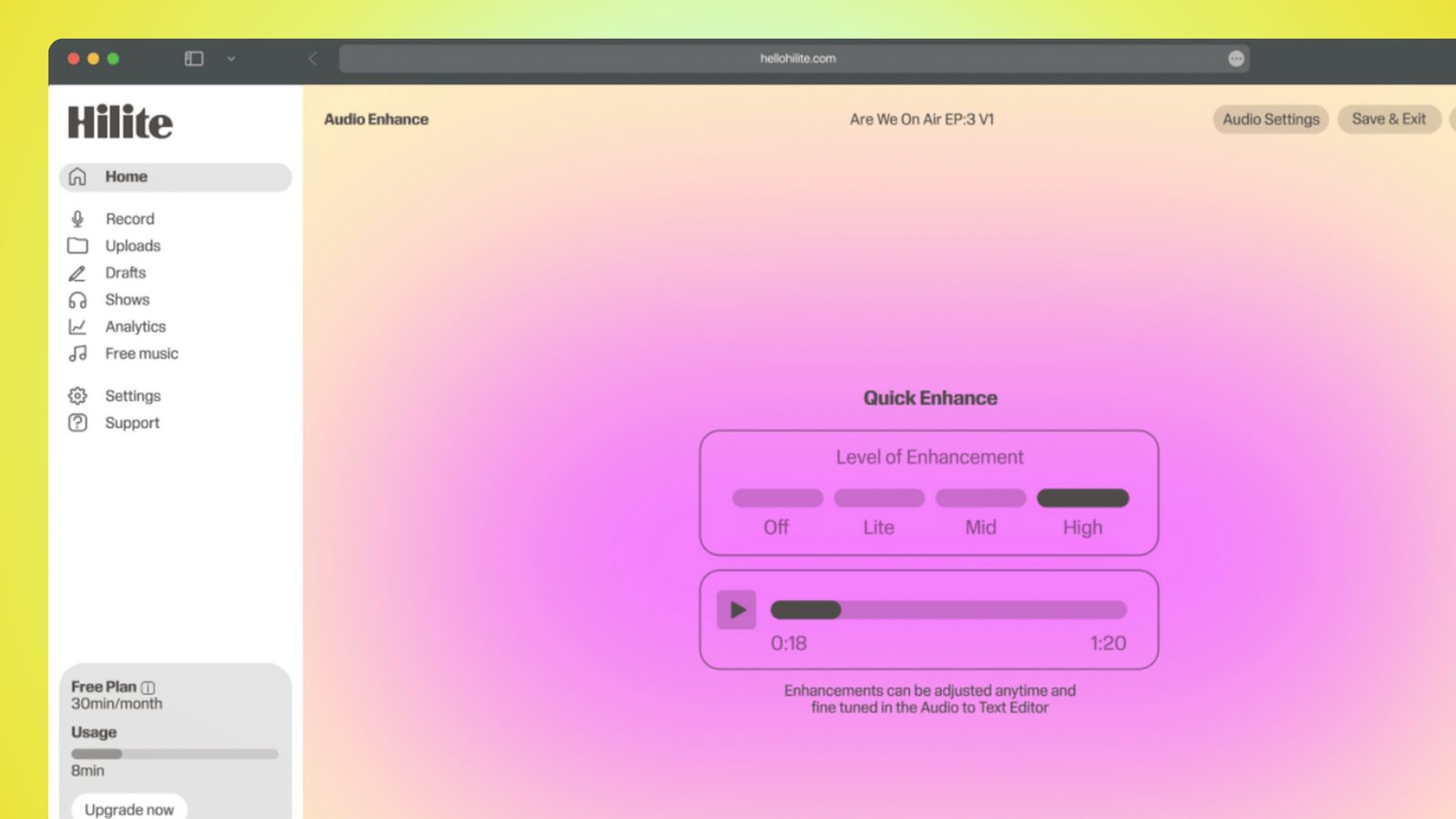
Made for podcasters and their teams
Trim the dead air off the top and tail, and every recording is ready to edit, enhance, and publish.



FAQ
Common questions
If you do not see your question here, the support team replies within one business day.
- Yes, it is free to start. Longer files, saved projects, and some export formats may need a free Hilite account.
- No. Upload the M4A directly. Converting first adds a step and can lose a little quality for no benefit to the transcript.
- Open Voice Memos, tap the recording, tap the share button, then save it to Files or AirDrop it to your Mac. You can upload it here from either.
- Usually. A phone picks up room noise and uneven levels, so the transcript will be less clean than a close-microphone recording, but it is generally usable. Every line is linked to the audio so you can check anything that looks wrong.
- Plain text, Word, and SRT subtitle files, with timestamps and speaker labels where the recording supports them.
Turn a voice memo into text
Upload the M4A, read the transcript, and carry on in Hilite when the recording needs cleaning up, editing, or publishing.