Record audio for an online course
Record clear lesson narration for an online course, edit retakes through the transcript, and export organized audio without installing a traditional recording suite.
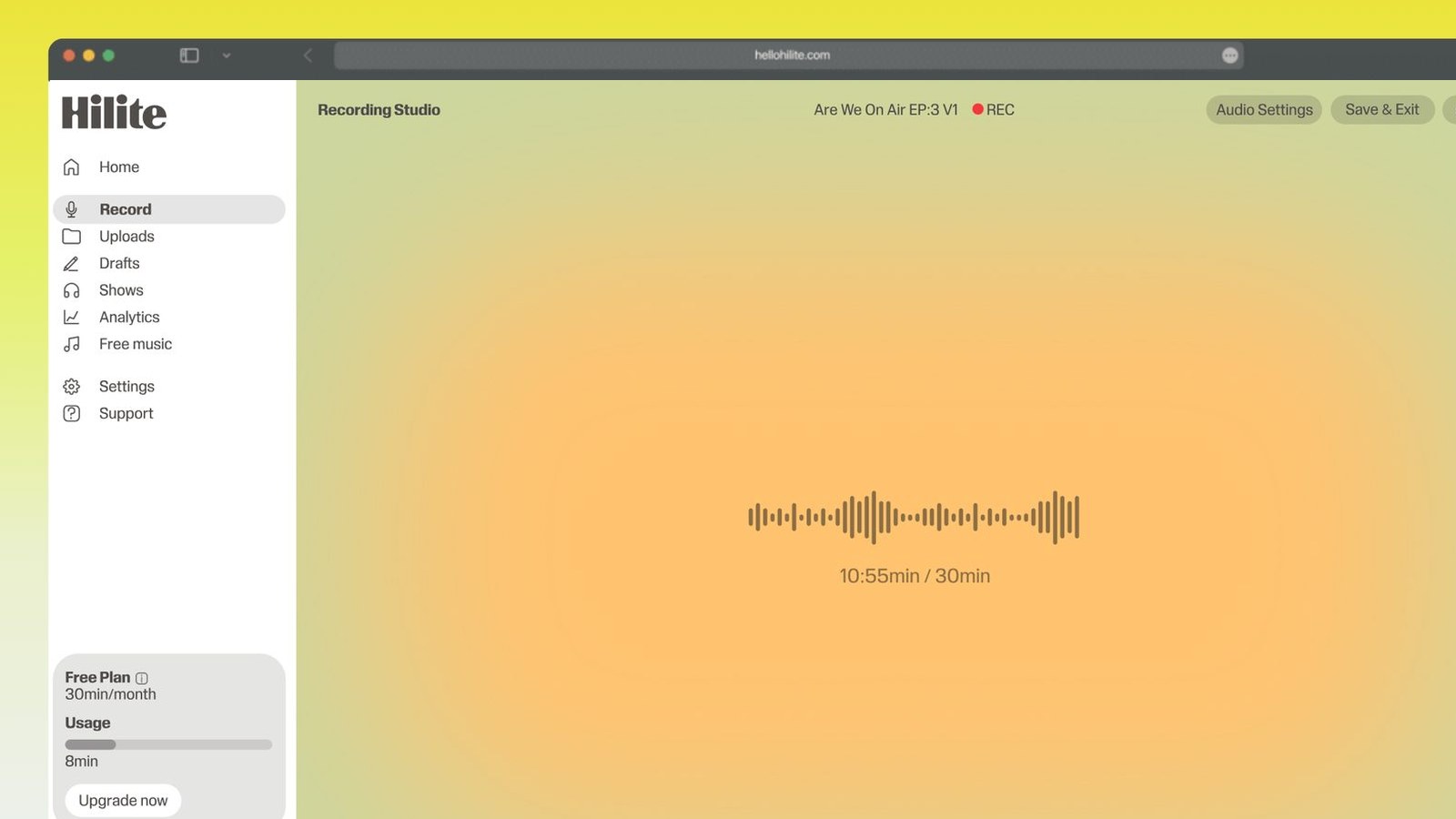
Capture spoken lessons in the browser and continue into editing.
Record course audio in four steps
- 1
Script the learning outcome
Give each recording one objective and write for listening rather than reading.
- 2
Test the microphone and room
Record ten seconds and fix echo, fan noise, or the wrong input before the lesson.
- 3
Record in short sections
Capture module-sized takes and repeat a sentence cleanly when you make a mistake.
- 4
Edit, transcribe, and export
Remove retakes, review the transcript, and name the final file for its module.
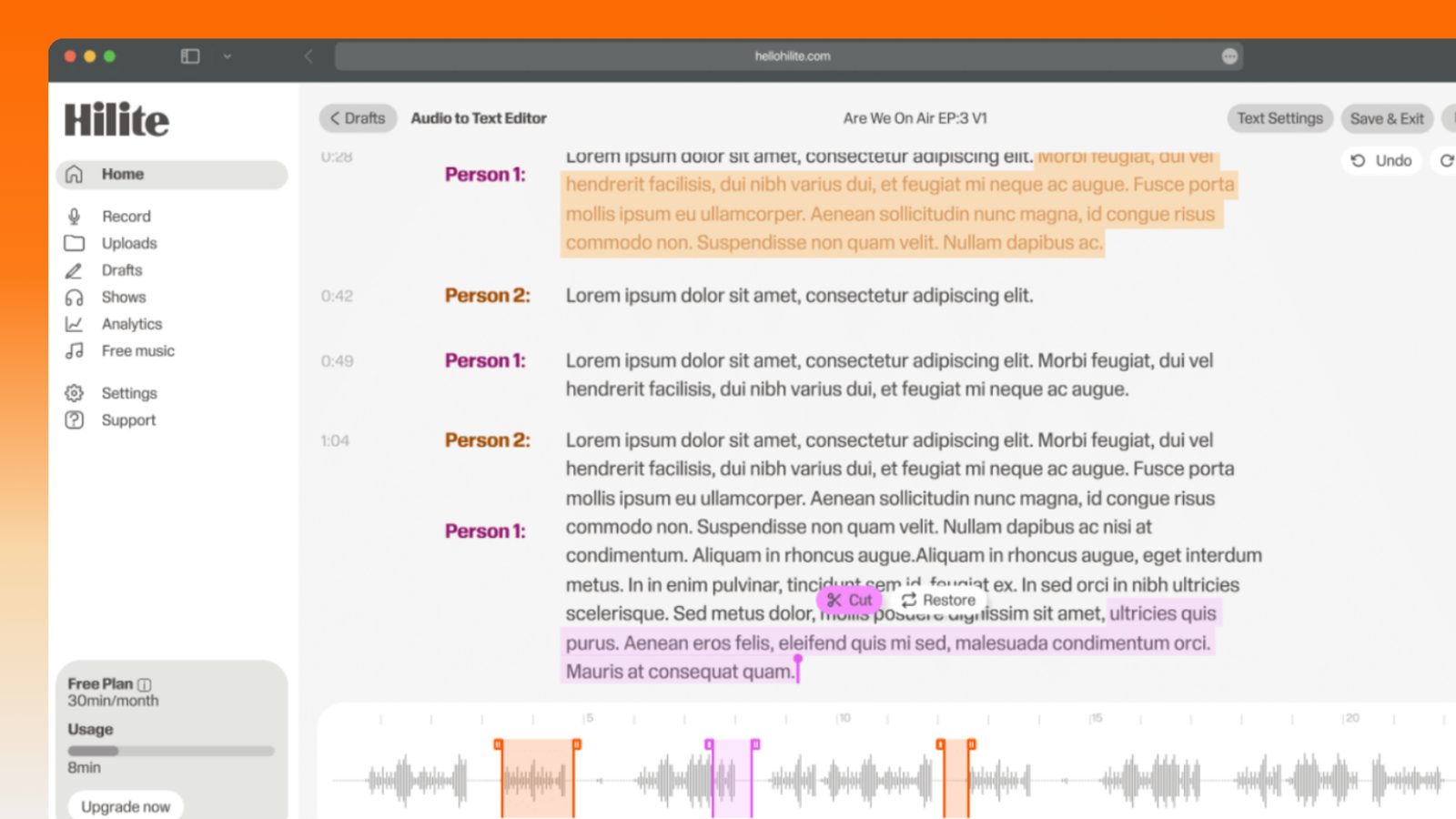
Keep working inside the Hilite editor
Your uploaded files open directly in a focused editor view. Arrange your clips, preview the timeline, adjust transitions, and export when the track sounds perfectly right.
- Record straight into the browser
- Watch levels as you speak
- Keep the take, or run it again
Input formats
Output formats
Built for every kind of audio
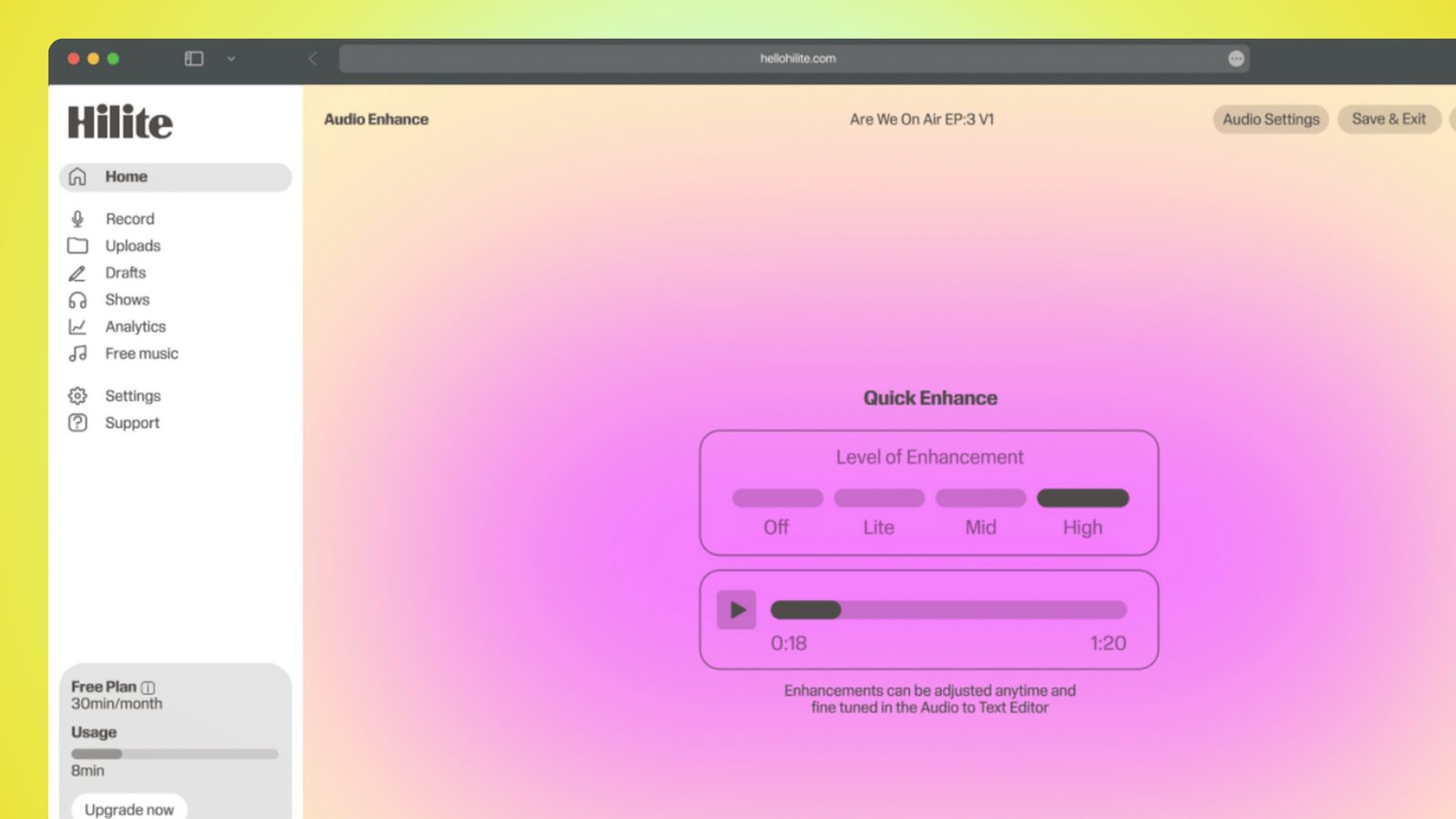
Whatever you are making, this tool helps you get to a cleaner, more useful result, then hand off to Hilite to enhance and polish.
- Lesson-sized filesKeep recordings aligned with modules so updates do not require rebuilding the whole course.
- Edit through textFind a retake or repeated explanation by finding its words.
- Accessible by defaultUse the transcript as the start of captions, notes, and written lesson support.
- No desktop suiteRecord and finish spoken lessons in the browser.
Made for podcasters and their teams
Trim the dead air off the top and tail, and every recording is ready to edit, enhance, and publish.
FAQ
Common questions
If you do not see your question here, the support team replies within one business day.
- Record in lesson-sized sections with a consistent microphone and room, then edit and name each file before uploading it to the course platform.
- Yes. Hilite records in a supported browser and continues directly into editing.
- No. A modest microphone in a quiet, soft room can produce clear course narration.
- Yes. Use the transcript for editing, captions, lesson notes, and accessibility.
- Usually. Separate files make the course easier to organize and individual lessons easier to update.
Record the lesson while the structure is clear
Capture, edit, transcribe, and export course audio with Hilite.