Record a sermon
The best sermon recording almost never starts with buying a microphone. The preacher is already mic'd, that signal is already going through the sound desk, and most desks have a spare output on the back that nobody is using. Take a feed from there and you get the preacher's voice; put a phone on the back row and you get the building, the air handling and whoever is unwrapping a sweet in row four. Voice Memos and the Android Recorder app will capture something in a pinch, and plenty of churches started that way, but they leave you with a file that can't be fixed. Hilite records that desk feed straight into a browser tab on the church laptop, so it lands in an editor rather than on somebody's phone.
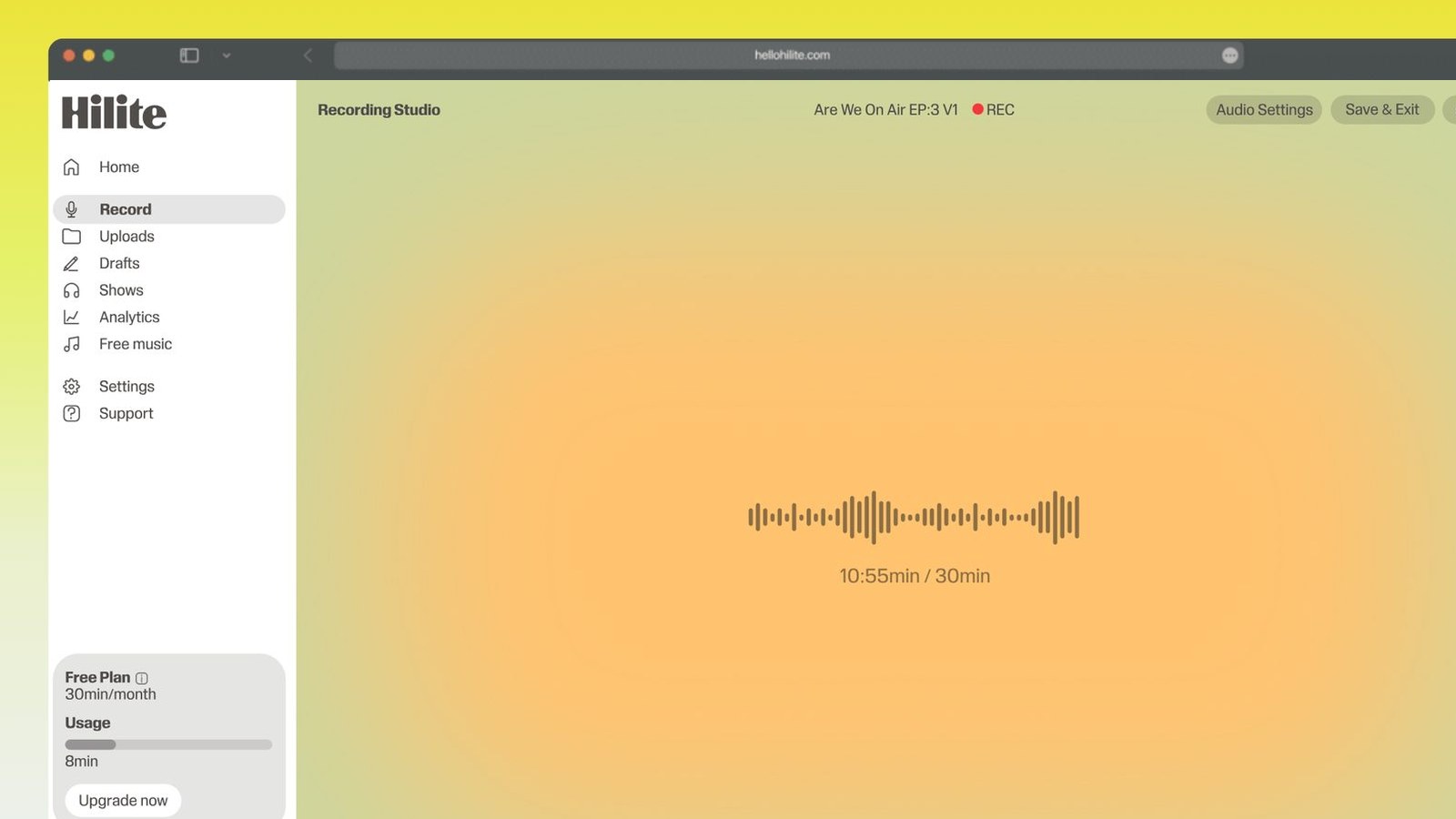
Record a sermon in four steps
- 1
Find the spare output on the desk
Look on the back of the mixer for a record out, a tape out, a spare aux send, or a USB port on a newer digital desk. Any of them will give you the mix that is going to the speakers, and on most desks at least one is sitting unused.
- 2
Get that feed into something
A USB desk plugs straight into the church laptop and appears as an input. An analogue output needs a cheap USB interface, or a small recorder sat next to the desk. Whichever you choose, leave it patched in permanently so nobody has to rebuild it on a Sunday morning.
- 3
Set the level before anyone speaks
Have someone talk at normal volume and set the input so peaks land around -12 dB. Preachers get louder than they do in a soundcheck, so leave that headroom deliberately — a recording that is a bit quiet can be raised, one that clipped cannot.
- 4
Record long, tidy after
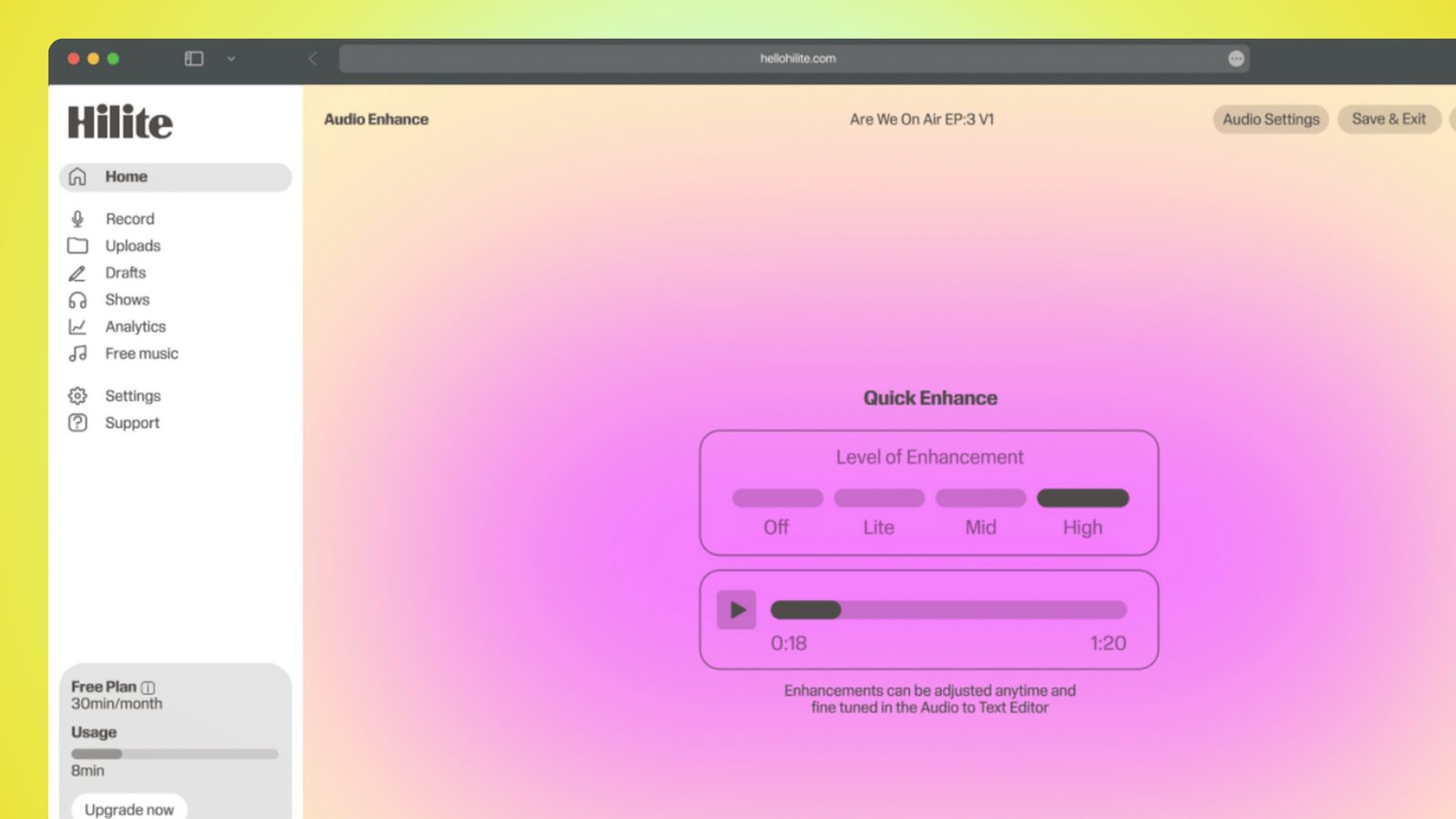
Start recording before the service and stop after, rather than trying to catch the exact moment. Then trim to the first sentence of the sermon, pull down any hum, level the whole thing, and export.
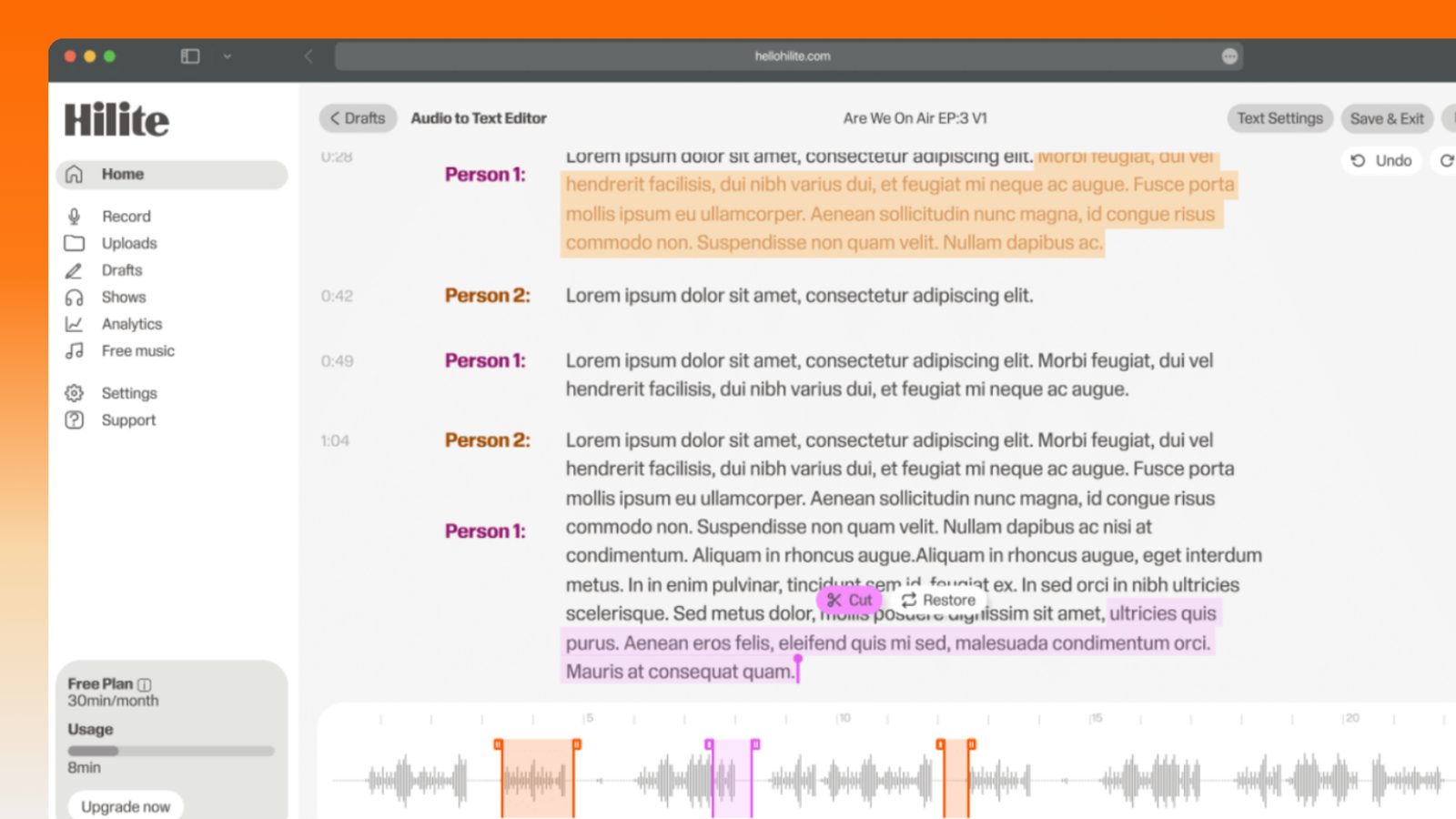
Keep working inside the Hilite editor
Your uploaded files open directly in a focused editor view. Arrange your clips, preview the timeline, adjust transitions, and export when the track sounds perfectly right.
- Record straight into the browser
- Watch levels as you speak
- Keep the take, or run it again
Input formats
Output formats
Built for every kind of audio
Whatever you are making, this tool helps you get to a cleaner, more useful result, then hand off to Hilite to enhance and polish.
- Use the desk you ownA spare aux send or the record output on the mixer gives you the preacher's voice with the room already stripped out. It usually costs a cable, not a budget line.
- Preachers moveA pulpit mic is a fixed point and the preacher isn't. A lapel or headset mic keeps the same distance from the mouth whether they're behind the lectern or halfway down the aisle.
- A volunteer repeats this weeklyWhoever runs sound on a Sunday needs three steps they can do half asleep, not a project. Write the setup down, leave the cable patched, press one button.
- Fix it after the servicePreaching swings from quiet to loud, and a raw file swings with it. Levelling, noise removal and a trim take a few minutes and are the difference between a file people finish and one they abandon.
Made for podcasters and their teams
Trim the dead air off the top and tail, and every recording is ready to edit, enhance, and publish.


FAQ
Common questions
If you do not see your question here, the support team replies within one business day.
- In order of quality: a direct feed from the sound desk, a lapel or headset mic recorded to its own recorder, a recorder placed close to a loudspeaker, and last a phone at the back of the room. The desk feed wins because it captures the microphone signal rather than the building, so you get the preacher and not the reverb, the ventilation and the congregation shuffling. If your church has a PA at all, you almost certainly already have the best option and just aren't using it.
- Find an output that isn't feeding the speakers — a record or tape out (usually RCA), a spare aux send (usually a quarter-inch jack or XLR), or a USB port if the desk is digital. Run that into a laptop through a small USB interface, or into a standalone recorder. If you use an aux send, check whether it is pre-fade or post-fade: post-fade follows the mix the congregation hears, pre-fade gives you an independent mix that you have to set yourself and that ignores the engineer's fader moves.
- A lapel or headset mic, almost always. Preaching involves moving — stepping out from behind the lectern, turning to a screen, walking down the aisle — and a fixed pulpit mic makes the voice rise and fall with every step, which no amount of editing fully repairs. A headset mic holds a constant distance from the mouth and is the most consistent thing you can put on a person who moves. Clip a lapel mic high on the chest, on the outside of any layer, and away from a swinging lanyard or badge.
- You can, and it's much better than not recording at all, but understand what it gives you. A phone at the back of a hall records the room: reverb off hard walls, the air conditioning, footsteps, coughs and the people nearest to it, with the preacher somewhere behind all of that. If a phone is the only option, put it as close to the preacher as you can rather than at the back — on the lectern, or on a chair a couple of metres away — and put it on something soft so it doesn't pick up knocks through the surface.
- Because a desk feed only contains what is going through a microphone. If nothing in the building is mic'd except the preacher, you lose the congregation entirely — the laughter, the responses, the singing — and the recording feels like it was made in an empty room, which for a service is a real loss. The usual fix is one room mic on a spare channel, mixed in quietly underneath, or a phone recording at the back kept as a second file you can blend in. Even a little of the room puts the congregation back in the recording.
- A steady low hum on a feed from the desk is usually a ground loop between the mixer and the laptop, not a fault in either. The cheap fixes are to plug both into the same power outlet or extension block, or to put a DI box with a ground lift between the desk and the recorder. If the desk has a USB output, use that instead — it sidesteps the problem entirely. If the hum is already on a file you have, noise removal will pull it down, but it's far easier to stop it at the cable.
- Three things, and no more: check the recorder or the browser tab is on the right input, press record before the welcome, press stop after the last song. Everything else — trimming, levelling, exporting, uploading — should happen afterwards and can be done by someone else during the week. Leave the cabling patched permanently and stick a laminated card by the desk listing the input name and the level to aim for. A setup that has to be rebuilt every week is a setup that will be skipped on the week somebody is off.
- For the preaching itself, it's normally a matter of asking the preacher, especially a visiting one, and agreeing beforehand where it will be published. Two things need more care. Music is the common problem: a church copyright or streaming licence often covers a livestream but does not automatically cover an on-demand podcast, so check the terms with your licence provider before you publish worship songs. And be careful with anything said from the floor — testimonies, prayer requests, pastoral detail, children's voices — which people share expecting a room, not an audience. Cutting those before publishing is normal practice, not censorship.
Same setup, every Sunday
Take the feed you already have, record it into a browser tab, and leave with a file that's ready to publish.