Record audio for Google Slides
Google Slides cannot record audio. There is no record button anywhere in it — you record the narration in something else, put the file in Google Drive, then use Insert > Audio in Slides and pick it from Drive. That's the whole process, and most pages on this subject take four hundred words to admit it. The second thing worth knowing early: Slides only accepts mp3 and wav from Drive, so a voice memo recorded on a phone comes out as an m4a and won't appear in the picker until it's converted. Hilite records in a browser tab, on a school Chromebook or anything else, and exports an mp3 you can drop straight into Drive.
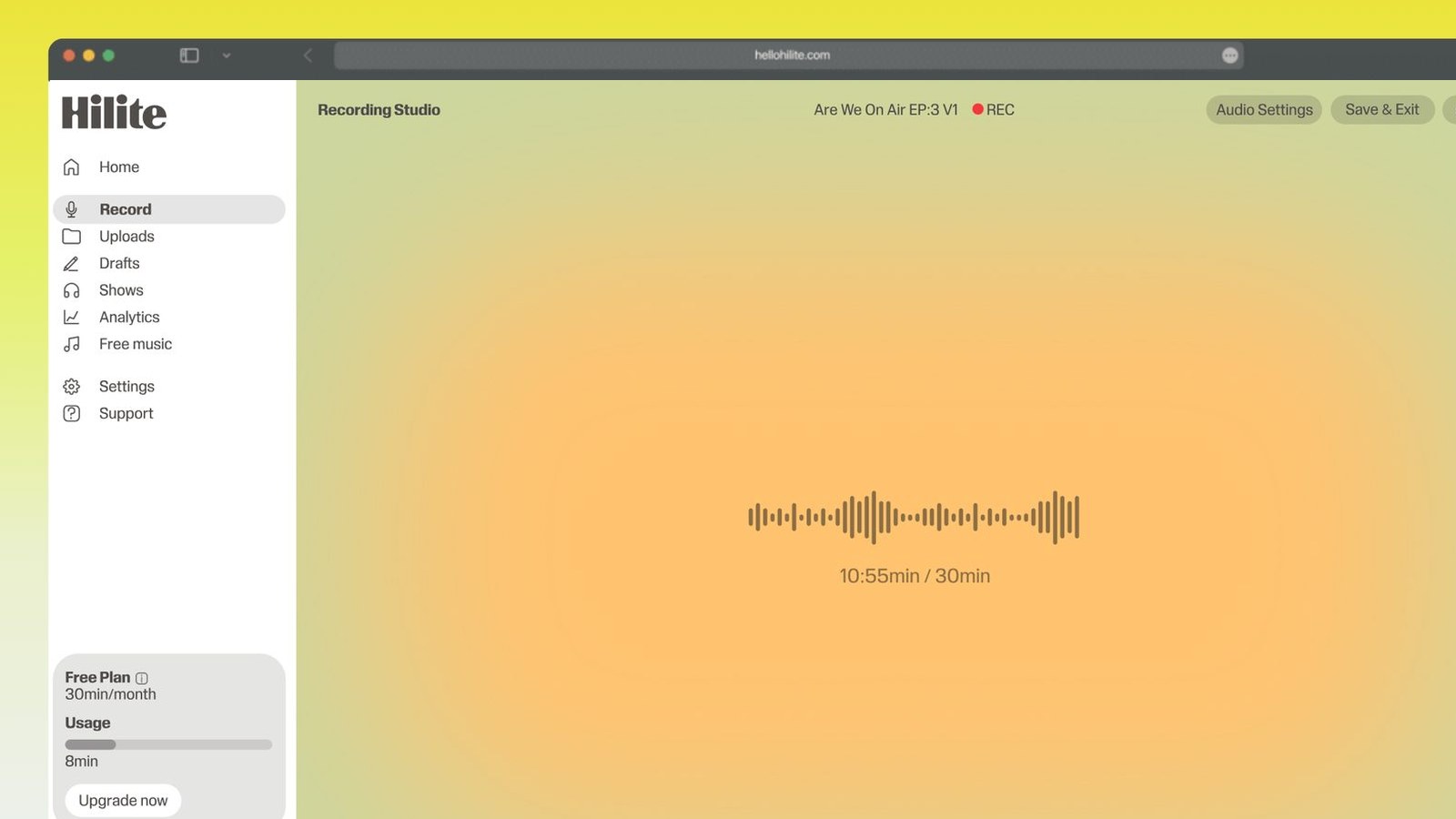
Narrate a Google Slides deck in four steps
- 1
Record the narration in a tab
Open Hilite alongside your deck, allow the microphone, and read the script for a slide. Nothing to install, which matters on a school-managed laptop or Chromebook.
- 2
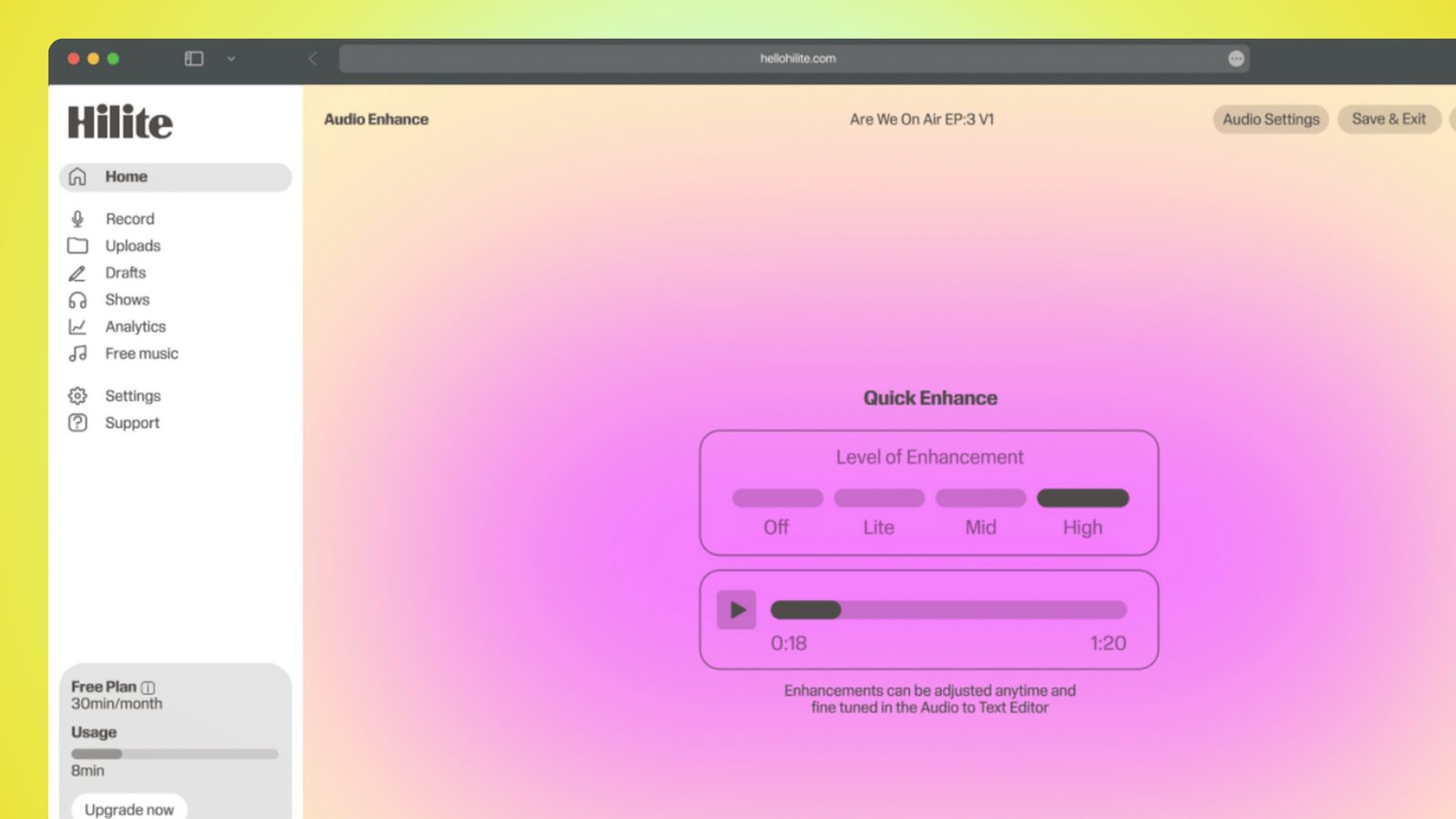
Trim, clean and export mp3
Cut the false start and the pause at the end, take out the noise floor, level the volume, then export mp3. Name the files by slide number so you can find them later.
- 3
Put the file in Google Drive
Slides only inserts audio that already lives in Drive, so upload it or export it there. Set sharing on the file itself to Anyone with the link can view, or nobody else will hear it.
- 4
Insert > Audio in Slides
Open the slide, choose Insert > Audio, pick the file from Drive, then use Format options on the right to set play automatically, hide the icon when presenting, and stop on slide change.
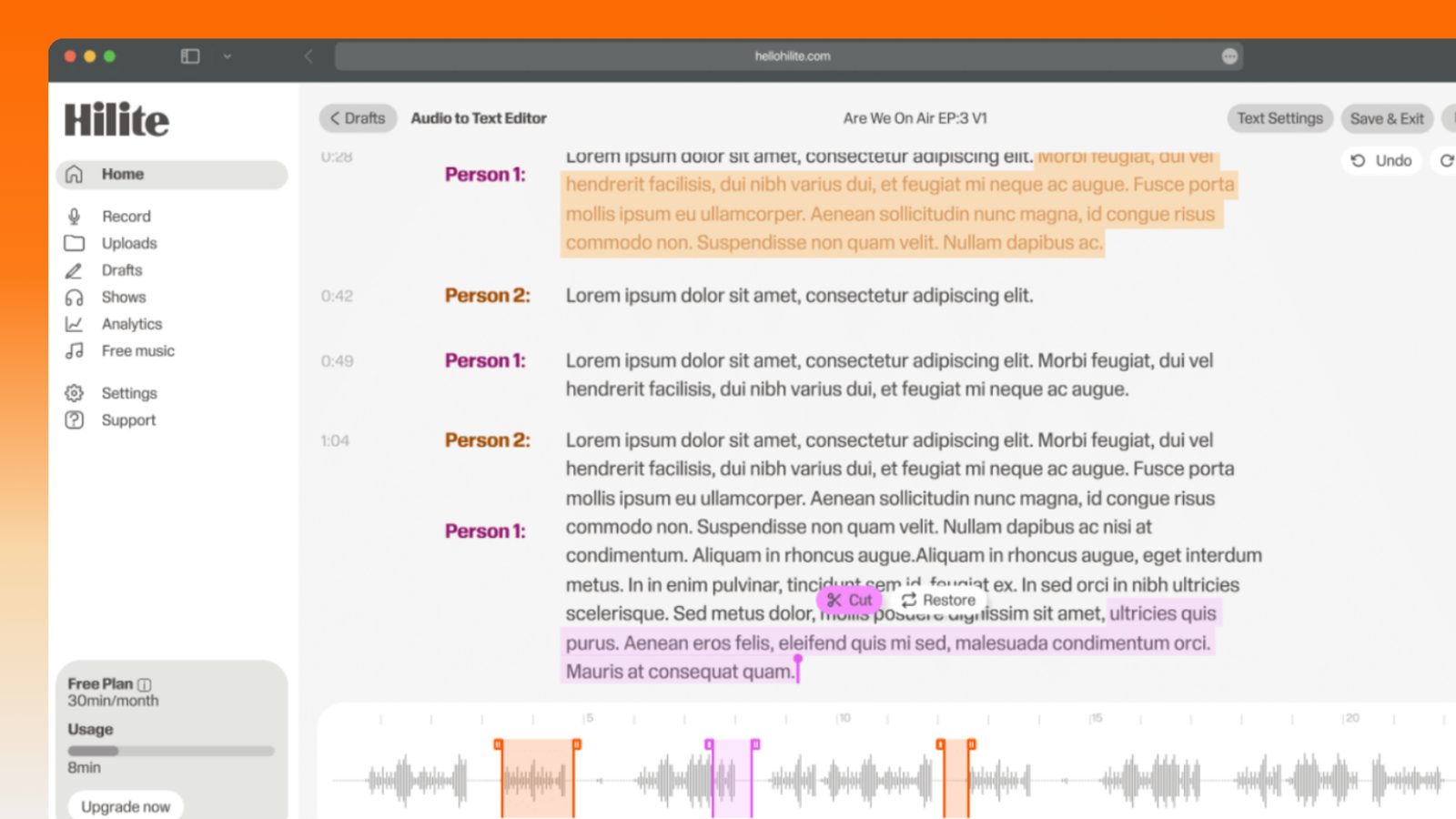
Keep working inside the Hilite editor
Your uploaded files open directly in a focused editor view. Arrange your clips, preview the timeline, adjust transitions, and export when the track sounds perfectly right.
- Record straight into the browser
- Watch levels as you speak
- Keep the take, or run it again
Input formats
Output formats
Built for every kind of audio
Whatever you are making, this tool helps you get to a cleaner, more useful result, then hand off to Hilite to enhance and polish.
- Exports the format Slides takesSlides ignores m4a, aac and most other files sitting in Drive. Export mp3 and the file simply shows up in the Insert > Audio picker.
- Works on a school deviceIt's a web page, so there's no app install for a district admin to approve. A managed Chromebook that blocks the Play Store still runs a browser tab.
- One take per slide, easilyRecord the whole script, then trim it into per-slide clips in the same tab instead of re-recording every time you fluff a line.
- Sounds like a lesson, not a laptopTake the room hum out and level the volume before you export, so the class hears the same loudness on slide two and slide twenty.
Made for podcasters and their teams
Trim the dead air off the top and tail, and every recording is ready to edit, enhance, and publish.



FAQ
Common questions
If you do not see your question here, the support team replies within one business day.
- No. Google Slides has no recording feature of any kind — PowerPoint has Record Slide Show, Slides has nothing equivalent. What it can do is play an audio file that already exists in your Google Drive: you record the narration somewhere else, save or upload the file to Drive, then in Slides choose Insert > Audio and select it. The audio appears as a small speaker icon on that slide, which you can position, resize and hide during presentation. This is the only route, so any page promising a record button inside Slides is describing an add-on or a screen recorder rather than Slides itself.
- Only mp3 and wav. Anything else in your Drive — m4a, aac, ogg, flac, wma — simply won't appear in the Insert > Audio picker, which is the single most common reason people think the feature is broken. This catches out anyone recording on a phone, because iPhone Voice Memos saves m4a by default and many Android recorders do the same. Either record in something that exports mp3 in the first place, or convert the file before you upload it. Between the two, mp3 is the one to use: it's a fraction of the size of a wav, and a long wav narration can make a deck slow to open.
- Nine times out of ten it's the sharing permission on the audio file, not the deck. Slides doesn't embed a copy of the audio — it links to the file in your Drive — so anyone who can't open that file gets silence, even though the speaker icon is visible and the deck itself is shared. Fix it in Drive: right-click the audio file, choose Share, and set General access to Anyone with the link, Viewer. If you're in a school domain, setting it to everyone at your school is usually enough and is often what the IT policy prefers. Do this for every audio file in the deck, not just the first one, and check it by opening the presentation in an incognito window.
- One file per slide, in almost every case. Slides attaches audio to a single slide, so a per-slide clip starts when that slide appears and stops when you move on, which is exactly what you want for a narrated lesson someone clicks through at their own pace. A single long track only stays playing if you set it to continue on slide change, and then it drifts out of sync the moment your viewer lingers or skips back. The practical method is to record the whole script in one go so your voice and levels stay consistent, then cut it into per-slide clips and export them numbered — slide-01.mp3, slide-02.mp3 — before uploading.
- Click the speaker icon, open Format options in the toolbar, and under Audio playback choose Automatically instead of On click. In the same panel, tick Hide icon when presenting so the speaker doesn't sit on top of your slide, and set the volume. Two settings are worth checking as well: Stop on slide change should be on for per-slide narration and off if you want a track running across several slides, and Loop audio should stay off for narration — it's there for background music, and a looping voiceover is a fast way to annoy a class. Automatic playback only works in Present mode, not while you're editing.
- Use a browser recorder, because a managed Chromebook usually blocks the Play Store and the Chrome Web Store. A web page isn't an install, so it opens like any other site and only needs microphone permission, which is a Chrome prompt rather than a software rollout. Record, trim, export mp3 straight to Google Drive, then insert it into your deck from there — all of it inside the same account and the same browser, with nothing landing in Downloads to be wiped when the device is powerwashed. If your school blocks unknown domains outright, ask IT to allow the site; that's one allow-list entry.
- Write out what you'll say for each slide first, then record it in a browser tab, export mp3 files named by slide number, and upload them to a folder in your Drive. In Slides, go slide by slide with Insert > Audio, choose the matching file, and set it to play automatically with the icon hidden. Before you submit, share the audio folder as Anyone with the link can view and open the deck in an incognito window to be sure your teacher will actually hear it. If the assignment asks for a video instead, present the deck with a screen recorder rather than inserting audio files.
- No to both, and this surprises people at the worst moment. A PDF has no audio at all. Downloading as .pptx drops the inserted audio, because the sound lives in your Google Drive rather than inside the file — PowerPoint opens the slides and the speaker icons are gone. If your deck has to leave Google, either present it from Slides with a link, or rebuild the narration in PowerPoint using Insert > Audio > Audio on My PC, which does embed the file. The same applies to anyone viewing offline: the audio needs an internet connection because it streams from Drive.
Record the narration, then insert it
Slides won't record for you, so record in a tab, export an mp3 to Drive and add it slide by slide.