How to record audio on iPhone
There are two ways to record audio on an iPhone: the Voice Memos app that came with it, or straight in your browser. Voice Memos is quickest for a note to yourself, and you can AirDrop it to your computer when you want to do more with it. Recording in the browser puts you in an editor the moment you stop, which is what you want when the recording is going to be published.
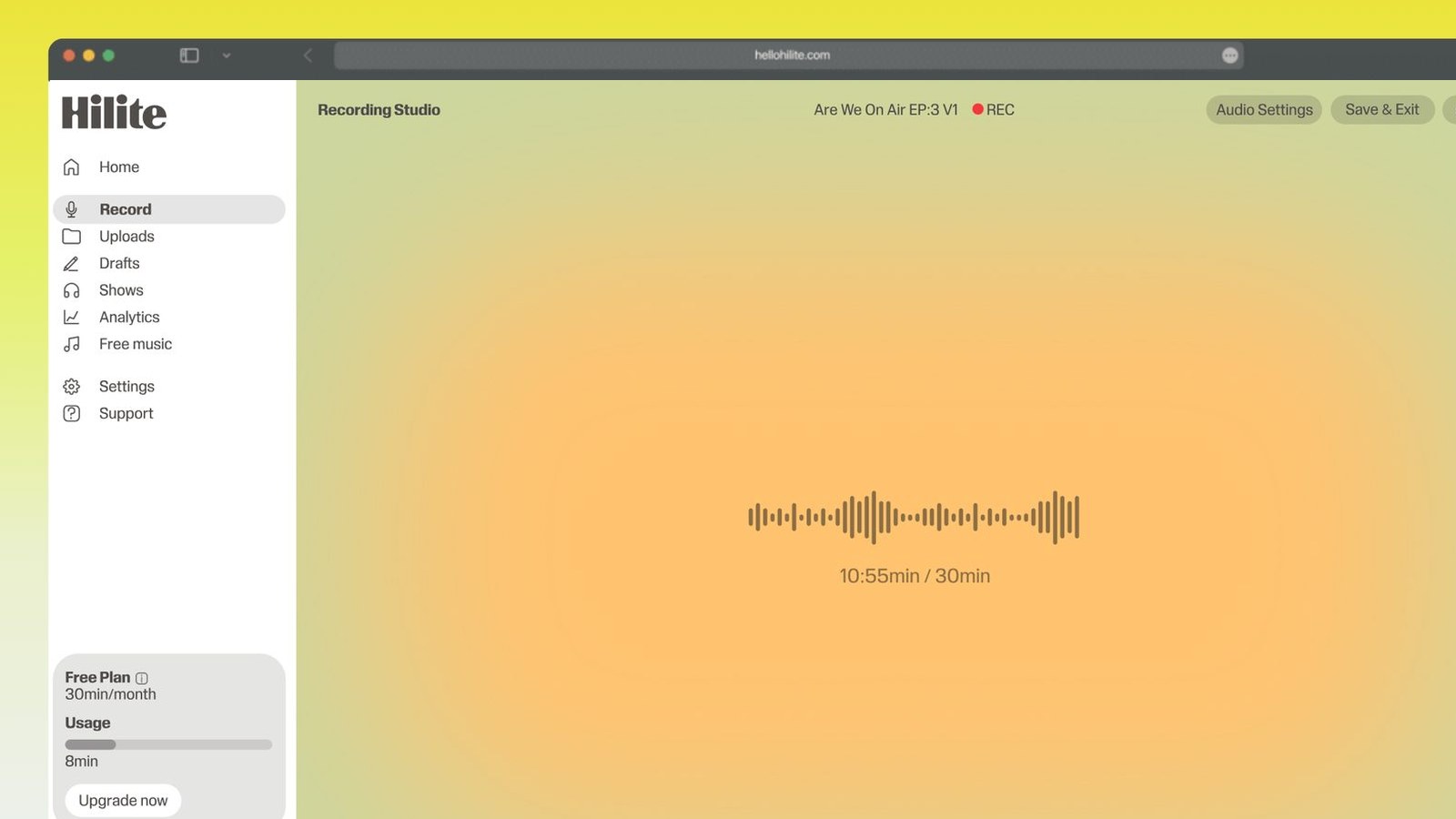
Record on your iPhone in four steps
- 1
Open Hilite in Safari or Chrome
No App Store download. Go to the recorder in your mobile browser.
- 2
Allow microphone access
iOS asks once. Tap Allow, and you are ready to record.
- 3
Hold the phone steady and record
Keep the phone about a hand’s width from your mouth, out of the wind, and away from hard reflective surfaces.
- 4
Trim, clean up, and share
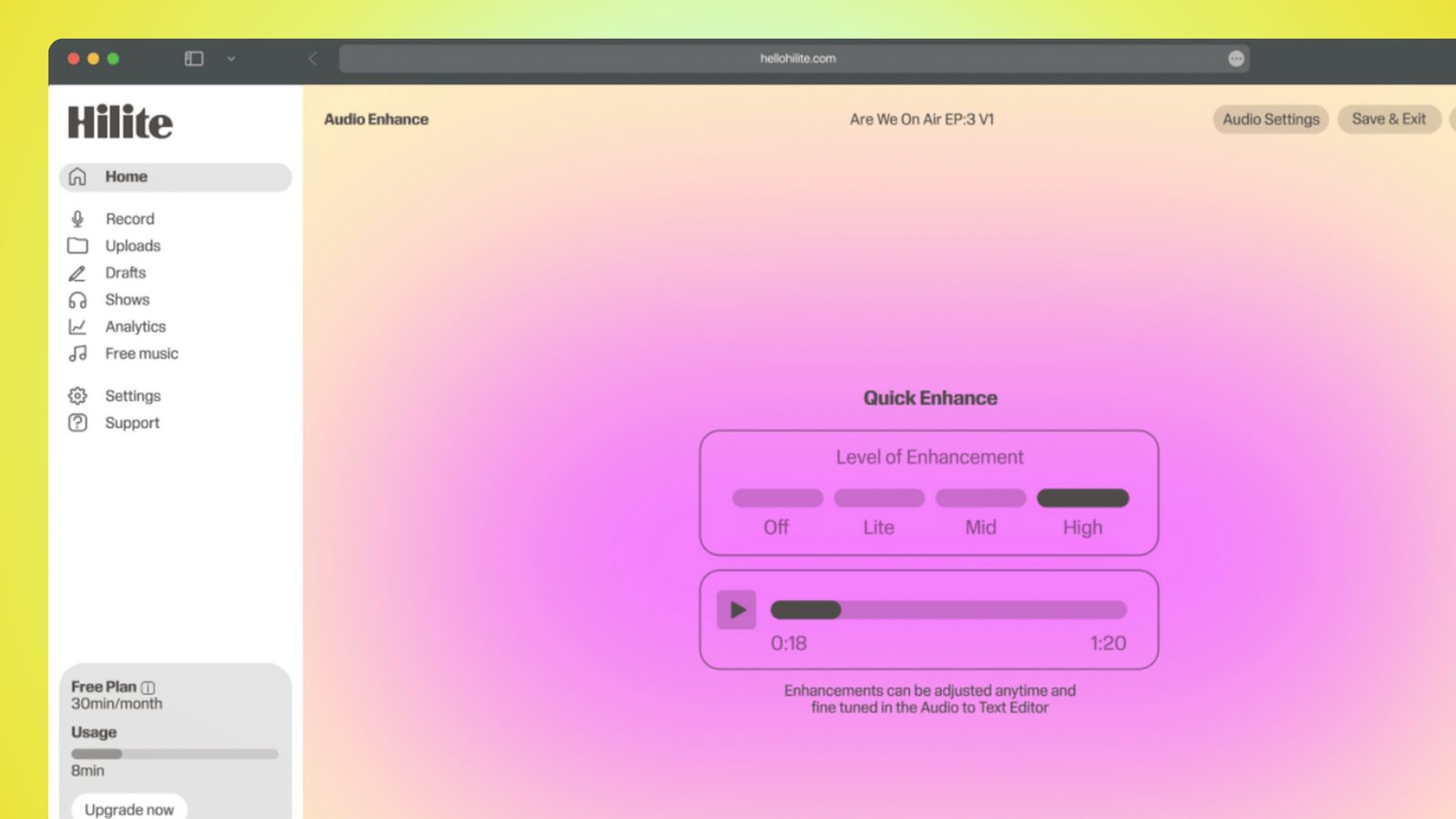
Cut the top and tail, reduce background noise, generate a transcript, and publish.
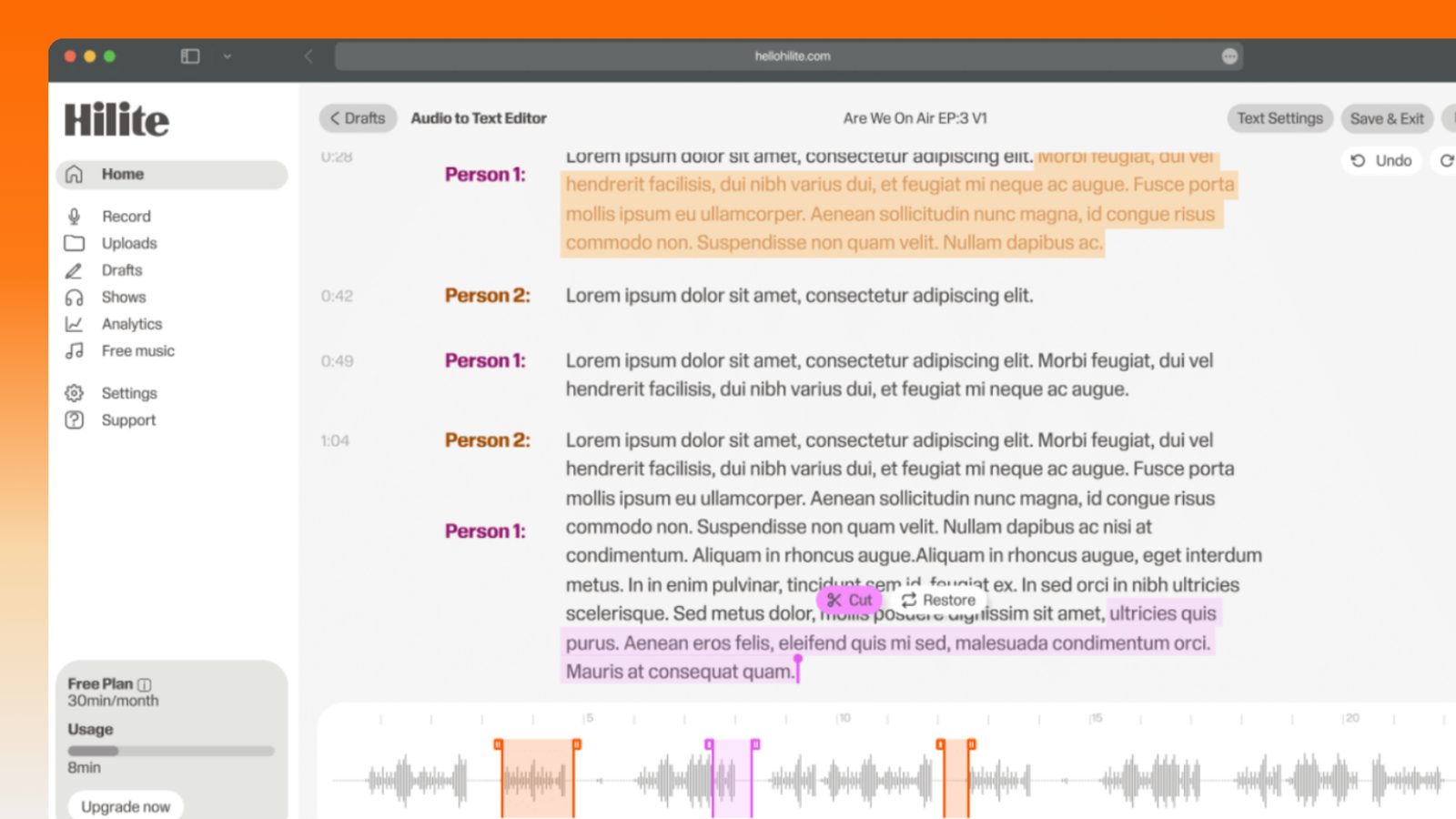
Keep working inside the Hilite editor
Your uploaded files open directly in a focused editor view. Arrange your clips, preview the timeline, adjust transitions, and export when the track sounds perfectly right.
- Record straight into the browser
- Watch levels as you speak
- Keep the take, or run it again
Input formats
Output formats
Built for every kind of audio
Whatever you are making, this tool helps you get to a cleaner, more useful result, then hand off to Hilite to enhance and polish.
- Voice MemosBuilt in, always there, and fine for a note you will only listen to yourself.
- Recording in the browserBetter when the recording is going somewhere: an episode, a lesson, a post.
- Finishing on the desktopAirDrop a Voice Memo across and pick the edit up on a bigger screen.
- Ideas you would otherwise loseThe best reason to record on the device already in your hand.
Made for podcasters and their teams
Trim the dead air off the top and tail, and every recording is ready to edit, enhance, and publish.





FAQ
Common questions
If you do not see your question here, the support team replies within one business day.
- Open Hilite in Safari or Chrome on your iPhone and allow microphone access. It records in the browser, so there is nothing to install.
- In the Voice Memos app itself, and in iCloud if you have that turned on. You can send a memo to another app from the share sheet.
- AirDrop is the quickest route to a Mac. Open the memo, tap the share button, and pick your computer — it lands in Downloads as an M4A file. On Windows, or with AirDrop switched off, save the memo to Files and sync it through iCloud Drive, or email it to yourself. Once it is on the desktop, upload it to Hilite to edit, clean up, and transcribe.
- Get closer to the phone, record indoors away from hard surfaces, and stay out of the wind. Wired earbuds with a microphone usually sound better than the built-in mic at a distance.
- Voice Memos can trim the start and end. For anything more, record in the browser and edit straight away, or AirDrop the memo across to your computer and upload it to Hilite.
- Voice Memos records M4A by default. Hilite accepts M4A along with MP3, WAV, AAC, and more.
- Yes. The browser recorder works the same way on iPadOS.
- Use Voice Memos for a quick note, or open Hilite in Safari when you want the recording to move directly into editing, transcription, and export.
The best recorder is the one in your pocket
Record on your iPhone, then trim, clean up, transcribe, and publish — all in the browser.