Record audio on Windows
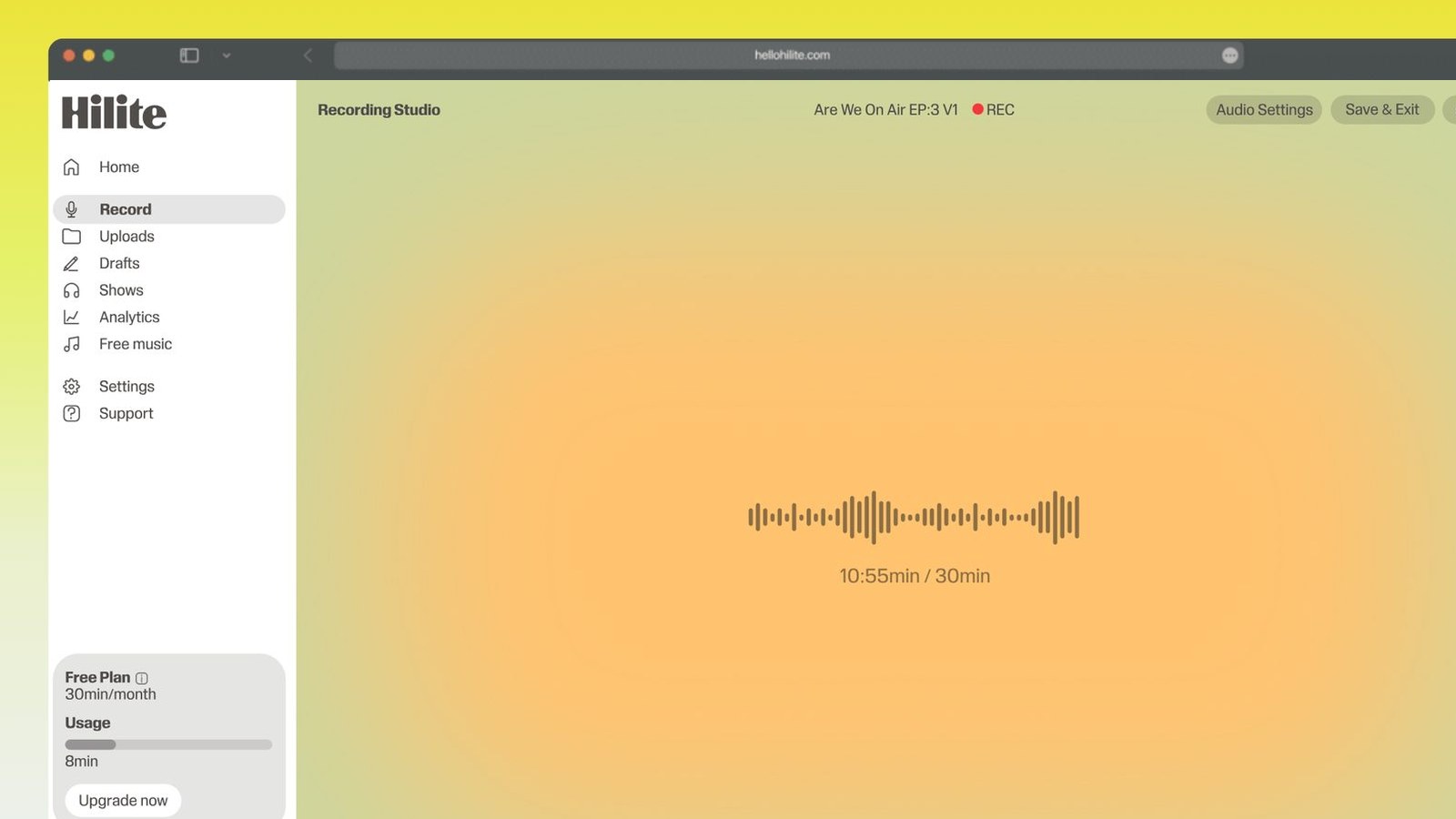
Windows already has a recorder, and for a lot of jobs it's enough: press Start, type recorder, and open Sound Recorder on Windows 11 or Voice Recorder on Windows 10 — same app, renamed. It picks your microphone, records, and saves an .m4a into Documents. Be clear about where it stops, though: the editing is trim-only, there's no noise removal, nothing to even out a loud speaker and a quiet one, and no transcript. Hilite records in a browser tab on the same PC, with nothing to install and no admin rights needed, and the recording opens straight into an editor that handles all four.
Record on your PC in four steps
- 1
Pick the right input
Settings > System > Sound > Input, and choose the device you mean. If a headset and a webcam are both plugged in, Windows will often have quietly chosen the webcam, which is why so many recordings sound distant.
- 2
Open Hilite in a tab
Chrome or Edge, both fine. Allow the microphone when the browser asks, and check the level meter moves when you speak.
- 3
Record
Sit about a hand's width from the mic and slightly off-axis. Keep the laptop off a hard desk if you can — a spinning fan directly under the mic is the single most common problem in Windows recordings.
- 4
Clean it up and export
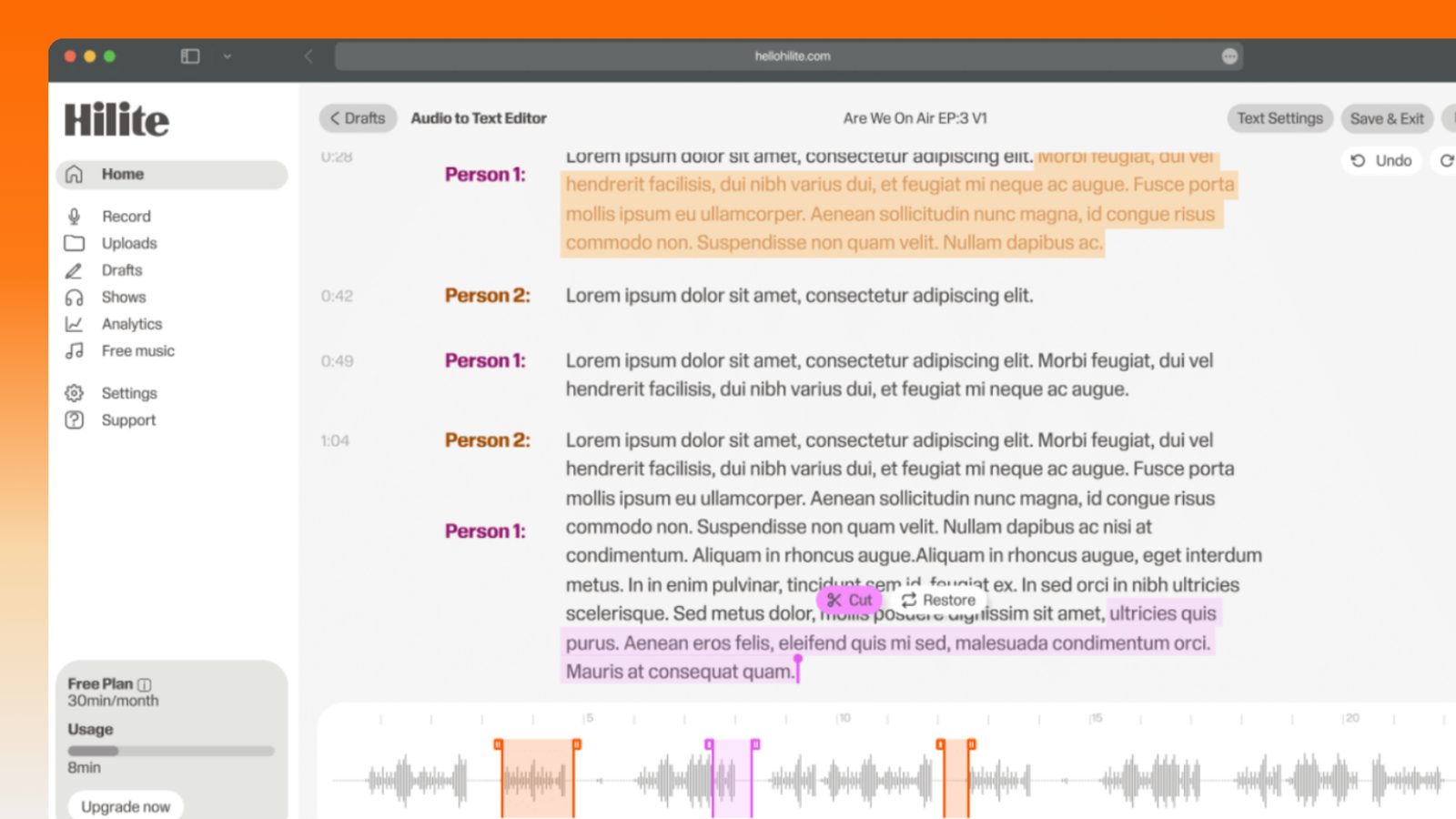
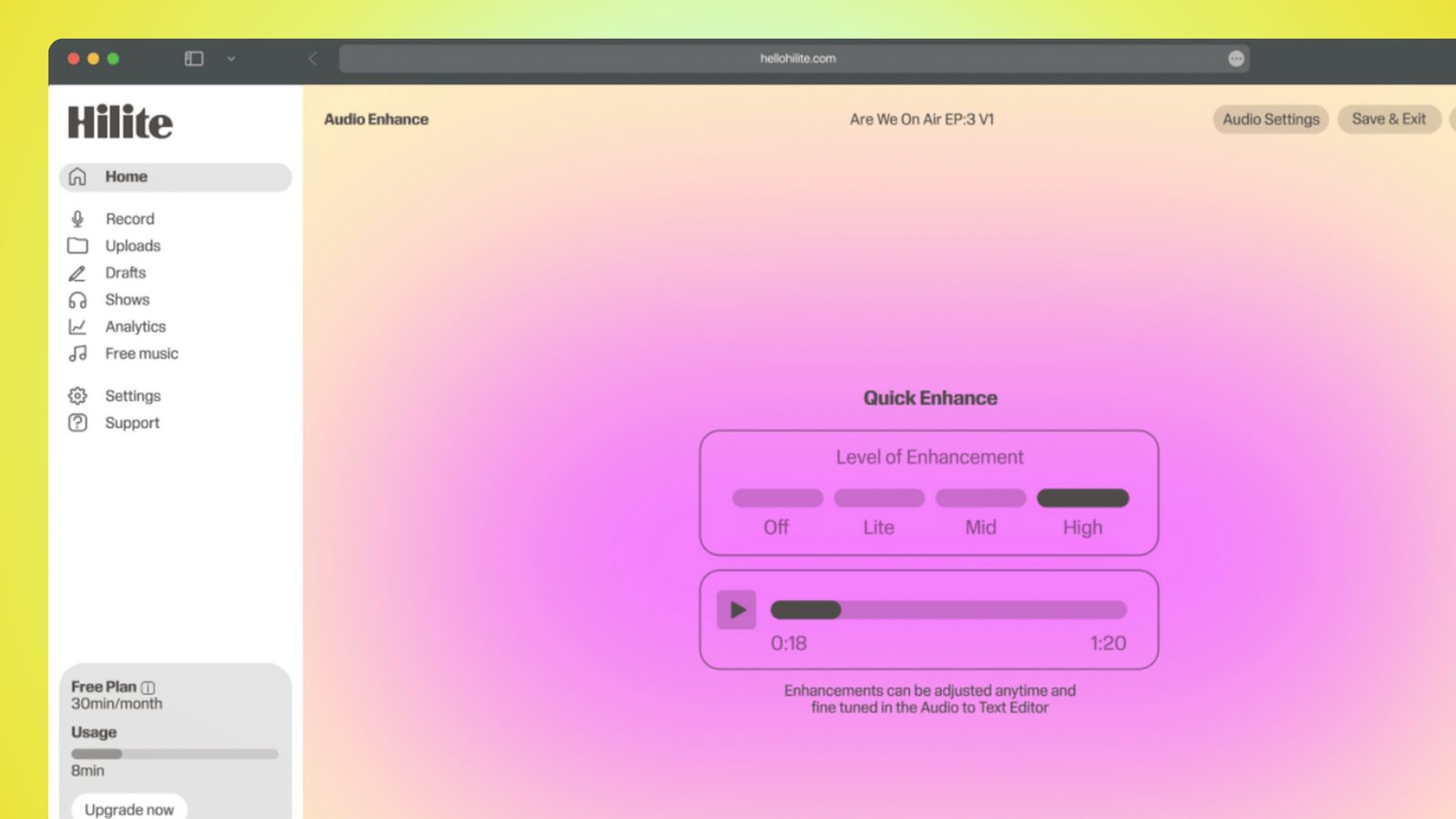
Trim, cut what you don't want, drop the background noise, level the voices, then export mp3 or wav. Copy the transcript if you need it.
Keep working inside the Hilite editor
Your uploaded files open directly in a focused editor view. Arrange your clips, preview the timeline, adjust transitions, and export when the track sounds perfectly right.
- Record straight into the browser
- Watch levels as you speak
- Keep the take, or run it again
Input formats
Output formats
Built for every kind of audio
Whatever you are making, this tool helps you get to a cleaner, more useful result, then hand off to Hilite to enhance and polish.
- More than trim-onlySound Recorder shortens the start and the end. Here you can lift a stumble out of the middle, tighten a long pause, and leave everything else exactly as recorded.
- No admin rights requiredWork and school PCs often refuse installers outright. A browser tab isn't an installer, so nothing needs approving before you can record.
- Quiet the fan humLaptop fans, air con and desk hum sit under every Windows recording. Noise removal pulls that floor down instead of leaving it in the published file.
- Transcript comes with itWindows gives you audio and nothing else. Get the text alongside it for show notes, captions or a written record of a meeting.
Made for podcasters and their teams
Trim the dead air off the top and tail, and every recording is ready to edit, enhance, and publish.





FAQ
Common questions
If you do not see your question here, the support team replies within one business day.
- Yes. On Windows 11 it's called Sound Recorder; on Windows 10 the same app is called Voice Recorder. Press Start and type 'recorder' and it will come up either way. It records from one microphone at a time, saves to Documents > Sound Recordings, and lets you trim the ends. The Windows 11 version added an input picker and a choice of file formats, which the Windows 10 one doesn't have.
- In Documents > Sound Recordings, as .m4a by default. On Windows 11 you can change the format in the app's settings — mp3, wav, flac and wma are all there — which is worth doing up front if whoever you're sending it to has asked for mp3. On Windows 10 you get .m4a and no choice, so you'd have to convert afterwards. You can also right-click a recording in the app and choose Show in folder if you can't find it.
- Go to Settings > System > Sound > Input, and select the device by name rather than trusting the default. Windows ranks inputs on its own and a webcam mic will often win, which is why the audio sounds like it was recorded from across the room. Click the device to open its page and use the Test your microphone bar — talk normally and watch it move. If a browser is already recording, close and reopen the tab after changing it, and check the browser's own mic picker too, because that setting is separate.
- You need Stereo Mix, and whether you have it depends on your sound driver. Right-click the speaker icon, open Sound settings, scroll to More sound settings to reach the old Sound control panel, go to the Recording tab, right-click in the empty space and tick Show Disabled Devices. If Stereo Mix appears, enable it and set it as the input. Many modern laptops — especially ones without Realtek drivers — simply don't have it, in which case a virtual audio cable or capturing from the source directly are the realistic options.
- Mostly the name. Microsoft rebuilt the Windows 10 Voice Recorder for Windows 11 and renamed it Sound Recorder, keeping the same basic job: one mic in, one file out, trim at the ends. The Windows 11 version adds a device picker inside the app and a choice of export formats. If a guide mentions one and your PC shows the other, you're in the right place — just look for the name that matches your version.
- Usually input level rather than the mic itself. Open Settings > System > Sound > Input, click your device, and raise the Input volume slider — plenty of headsets arrive set low. For older drivers, More sound settings > Recording tab > your device > Properties > Levels also has a Microphone Boost control, which can add gain but also adds hiss, so use as little as you can get away with. Getting closer to the mic beats both: halving the distance does more for the level than any slider.
- Only by trimming the start and the end. There's no way to remove a section from the middle, no fades, no noise reduction and no volume correction. That's fine for a voice note. If you fluff a line halfway through, or the air con was running, or one person came out twice as loud as the other, you'll need an actual editor — that's the point where the built-in app runs out rather than a criticism of it.
- If you're both in the room, one good mic placed between you is better than two cheap ones, and you fix the level difference afterwards. If it's a remote call, record your own microphone locally at full quality instead of relying on the meeting recording, and ask the other person to do the same on their end — call audio is compressed hard for bandwidth and you can't get that quality back. Line the two files up, level them together, and the finished conversation sounds like one recording rather than two.
Keep Sound Recorder for voice notes
When the recording is going somewhere other than your own Documents folder, record it here instead.