Record your mic online
This page is for recording from your microphone in the browser — you press record, you talk, you get a file. That's a different job from checking the mic works at all, which is what our microphone test page does, and it's worth spending ten seconds there first if you're not certain the right input is live. Every modern browser can record audio without a plugin, so there's nothing to download; the parts that trip people up are permissions, which input the browser picked, and levels. Hilite handles the recording and then opens it in an editor, so you can trim the false start, take the room hum out, even the volume and export an mp3 or wav.
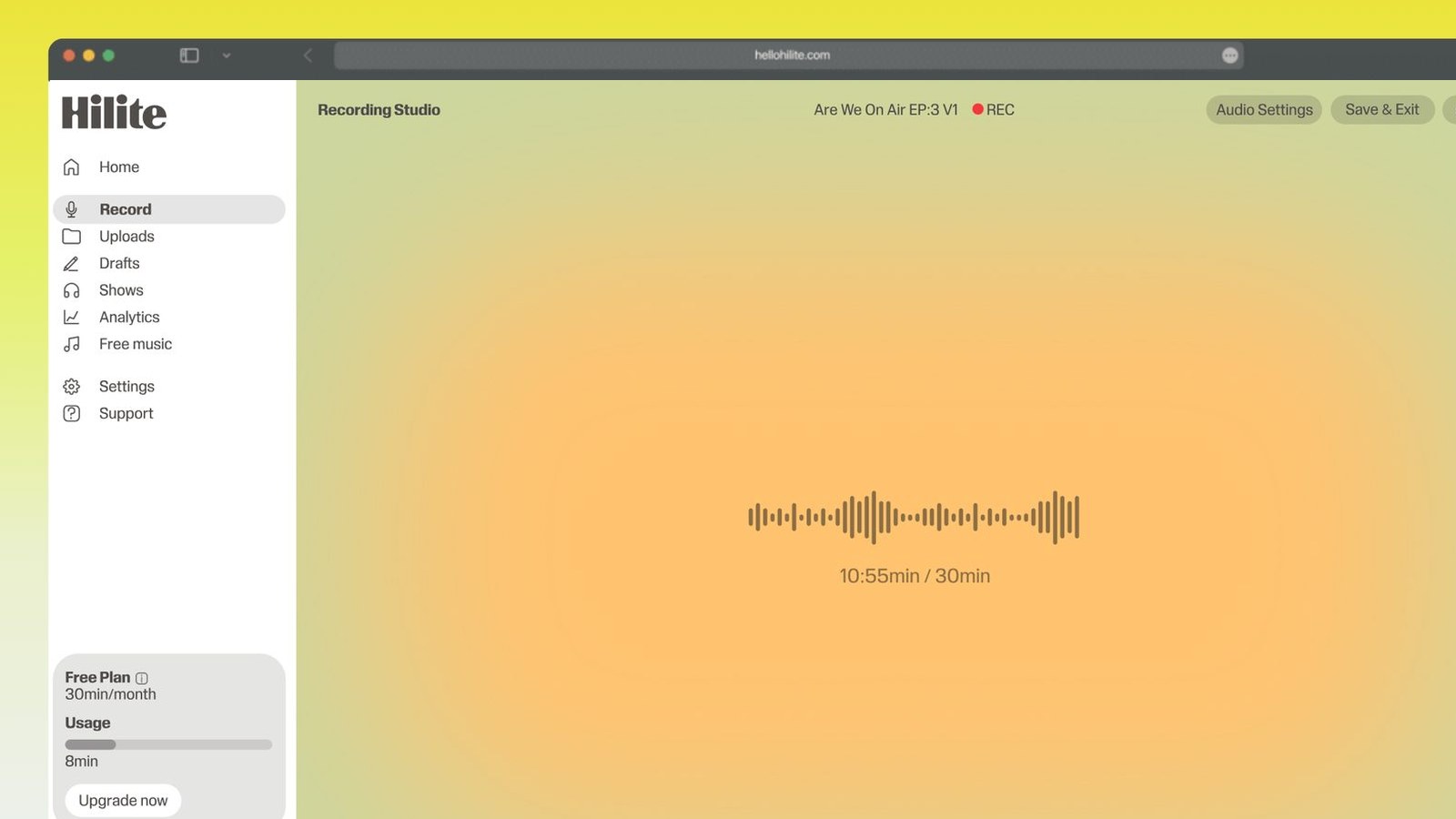
Record your microphone in four steps
- 1
Check the mic is live
Ten seconds on a mic test page saves a long recording of silence. You're looking for one thing: does the meter move when you talk into the mic you intend to use, not some other one.
- 2
Allow the microphone
The browser asks once per site and remembers your answer. Click Allow. If no prompt appears, the site is probably already blocked from an earlier visit — see the next step.
- 3
Pick the input and set your level
Choose your mic by name from the input list rather than trusting Default. Talk at the volume you'll actually use and watch the meter — the loudest bits should sit around two thirds, not pinned at the top.
- 4
Record, tidy up, export
Press record and speak a hand's width from the mic, slightly off to the side so your Ps don't thump. Then trim the ends, cut the noise floor, level the volume and export an mp3 or wav.
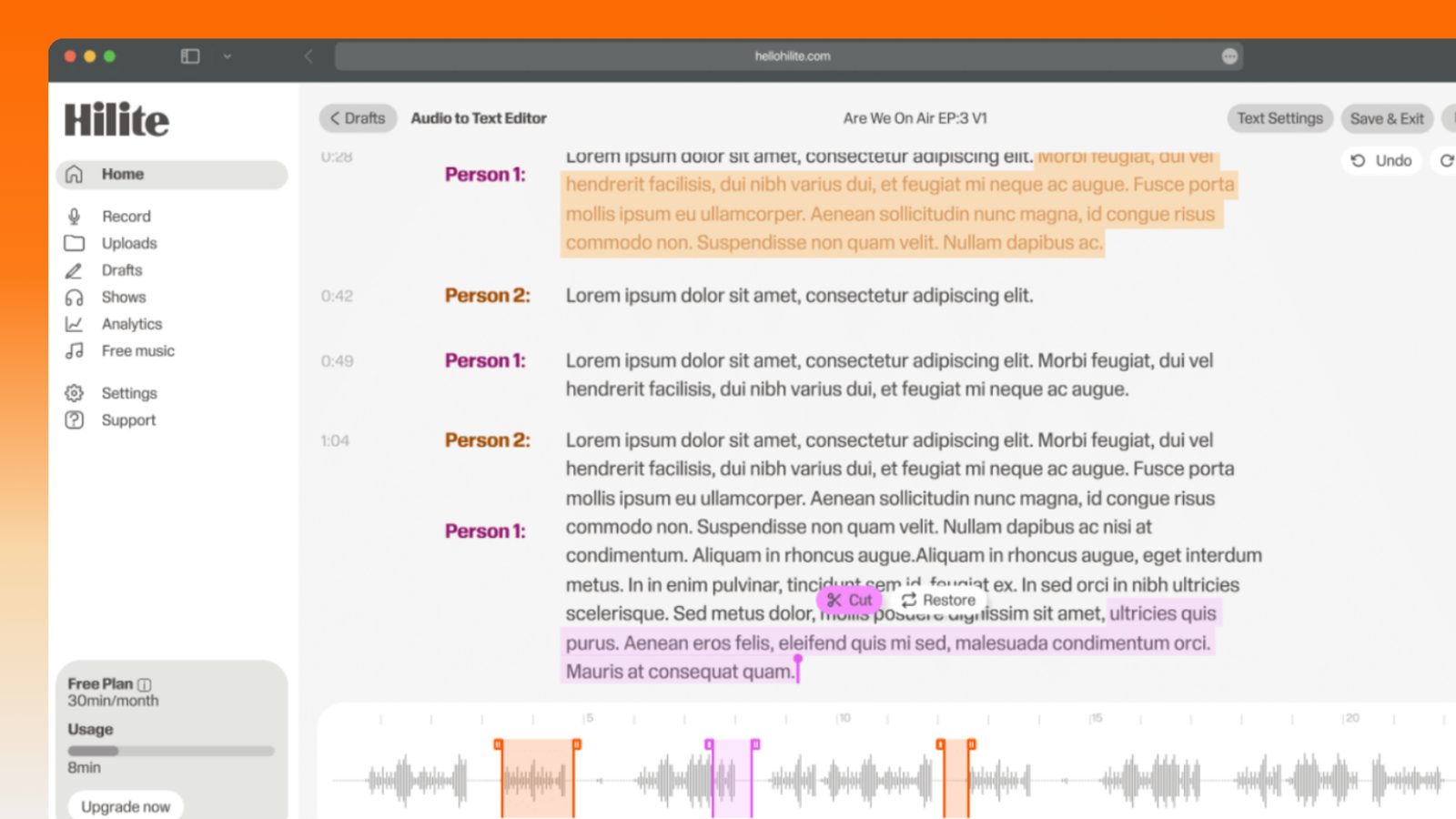
Keep working inside the Hilite editor
Your uploaded files open directly in a focused editor view. Arrange your clips, preview the timeline, adjust transitions, and export when the track sounds perfectly right.
- Record straight into the browser
- Watch levels as you speak
- Keep the take, or run it again
Input formats
Output formats
Built for every kind of audio
Whatever you are making, this tool helps you get to a cleaner, more useful result, then hand off to Hilite to enhance and polish.
- Record, not just testA mic test tells you the input is alive. This keeps the audio, so the take you just did is the take you publish rather than something you have to do again.
- The right input, on purposeBrowsers default to whatever the system calls the default device, which is often a webcam mic across the room. Pick your input from the list before you start.
- Levels you can seeA meter that moves while you talk is the difference between a usable take and a distorted one. Aim for the middle of the range on your loudest sentence.
- Straight into an editorMost online mic recorders hand you a raw file and stop. Here you can cut the middle, remove the noise floor, level the volume and get a transcript in the same tab.
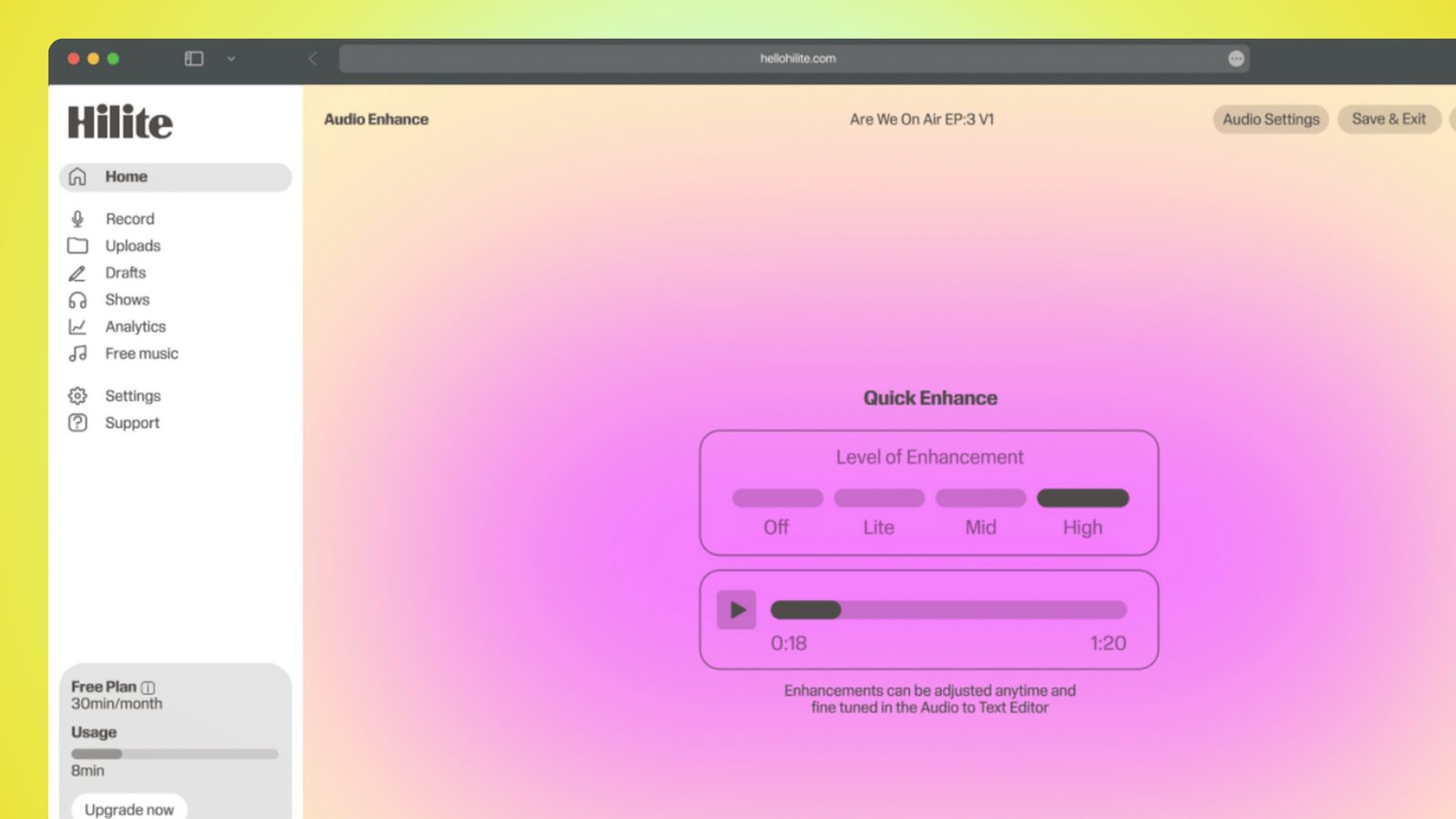
Made for podcasters and their teams
Trim the dead air off the top and tail, and every recording is ready to edit, enhance, and publish.


FAQ
Common questions
If you do not see your question here, the support team replies within one business day.
- Open a browser recorder, allow microphone access when the prompt appears, and press record. Every current browser can capture audio through a built-in web standard, so no plugin, extension or installer is involved — the page asks the operating system for the mic the same way a video call does. The recording happens on your machine, which is why it keeps working on a slow connection. When you stop, you have a file you can trim and export.
- No, and the difference matters. A mic test answers one question — is this microphone working and is the browser hearing it — by showing you a live meter and nothing else; nothing is saved. A recorder keeps what you say and gives you a file at the end. Testing first is a sensible step before a real recording, especially with a new headset or an unfamiliar computer, but it's a check rather than the job. Use the test to confirm the input is live, then come here to actually record.
- You almost certainly dismissed or blocked the prompt on an earlier visit, and the browser is quietly honouring that. Look at the left-hand end of the address bar for a padlock, a sliders icon or a crossed-out microphone, click it, and set Microphone to Allow — then reload the page. In Chrome and Edge you can also go to Settings > Privacy and security > Site settings > Microphone and remove the site from the blocked list. On a Mac, check System Settings > Privacy & Security > Microphone and make sure the browser itself is ticked, because macOS blocks at the app level as well.
- Because the browser asked for the system default input, and plugging a webcam or an HDMI monitor in often makes that device the default without telling you. A webcam mic sits a metre away above your screen, so it picks up the room, the keyboard and the fan, which is why the recording sounds hollow. Fix it in the recorder by choosing your headset or USB mic by name from the input list rather than leaving it on Default. If you want it fixed everywhere, change the input device in Windows sound settings or macOS Sound settings too, then reload the page so the browser sees the change.
- Pick it by name in the recorder's input list, then confirm with the meter before you commit. Device names are not always obvious — a USB mic may appear as its model number, a headset may show up twice as both a headset and a headphone device, and laptops list an internal array mic that sounds distant. The reliable test is to tap the mic you want with a fingernail and watch which selection makes the meter jump. Do this once at the start; browsers remember your choice for the site.
- Loud enough to sit clearly above the noise floor, quiet enough to leave headroom. Say your loudest sentence at the distance you'll actually be sitting and watch the meter: you want the peaks around two thirds of the way up, with the meter never touching the top. Once it hits the ceiling the waveform is clipped and that distortion is permanently baked into the file — no editor can undo it. If you're too quiet, move closer rather than turning the input gain right up, because gain amplifies the room hiss along with your voice. Levelling afterwards will even out what's left.
- The capture itself happens in your browser, on your own machine. The page uses the browser's media recording API, so the audio is held locally while you record and nothing is streamed out as you speak. What happens afterwards depends on the tool: features like transcription need the file processed, so it's worth reading any recorder's privacy page before you record something sensitive. If you only need a local file, record and export without touching the extras.
- Chrome, Edge, Firefox, Safari and the other Chromium browsers all can, on desktop and mobile. Two practical caveats: the page has to be served over https, which any real site is, and some browsers pause or throttle a background tab, so keep the recording tab in front and the screen awake. On iPhone and iPad the recorder runs in Safari, and on Android it runs in Chrome. If a mic recorder refuses to work in one browser, try another before assuming the mic is broken — it's usually a stuck permission rather than hardware.
Press record in your browser
Pick the right input, watch the level, and the take lands in an editor that trims, cleans and levels it.